How to Permanently Delete Your Ring Account

By Trae Jacobs,

When you buy through our links, we may earn an affiliate commission.
Your Ring account holds personal data and camera access that you want removed. You can delete your account and erase all associated data by following these steps.
- Open the Ring app and remove any shared users from your account so they no longer have access to your devices [0:12].
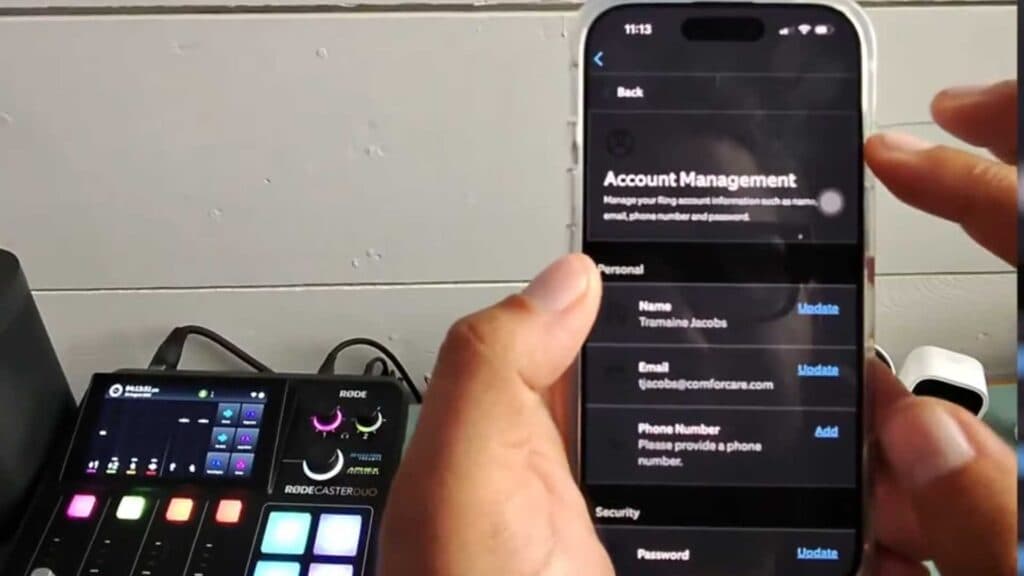
- Open the side menu in the app, select Account Settings, and click on your name to open the desktop-style window [0:31].
- Select the secondary “Back” button located below the main app control to access the embedded web interface [0:55].
- Scroll to the bottom of the screen and select Manage your data to initiate the deletion process [1:01].
- Follow the on-screen prompts to confirm that you want to permanently delete your account, noting that it can take up to 30 days for the request to complete.
Ninja Tip: Before deleting your account, manually download any important videos you want to keep from your Event History, as all stored footage will be permanently wiped once the account is closed.
If you have a physical Ring device, you can perform a factory reset by holding the setup button on the unit for 20 seconds, which is typically found under the faceplate or on the back of the camera.
Keep Reading



