How to Permanently Delete Apps on an iPhone

By Trae Jacobs,

When you buy through our links, we may earn an affiliate commission.
Your iPhone is cluttered with apps you no longer use. You can remove these programs and their associated data to free up space.
- Press and hold the icon of the app you want to remove from your home screen, tap Remove App, and select Delete App to ensure all its data is cleared [0:13].
- Swipe to the right until you reach your App Library, press and hold the app icon you want to remove, and select Delete App [0:38].
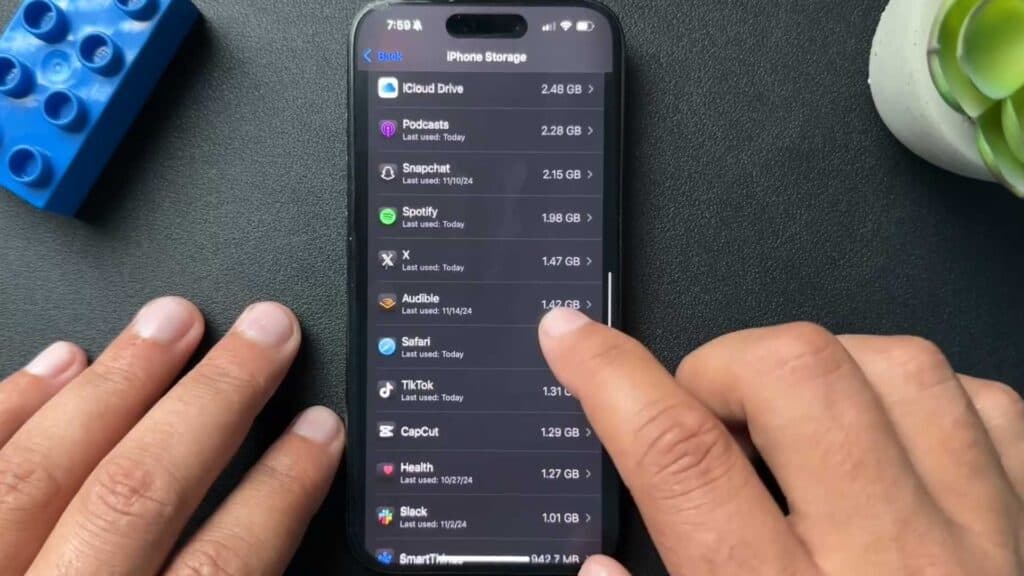
- Go to Settings, tap General, select iPhone Storage, then either swipe left on an app to delete it or tap the app to find the Delete App button.
Ninja Tip: To prevent your iPhone from automatically offloading unused apps to the cloud while keeping their data, go to Settings > App Store and toggle off Offload Unused Apps.
If you still face issues with storage or app management, you can perform a reset by going to Settings > General > Transfer or Reset iPhone > Erase All Content and Settings.
Keep Reading



