How to Pair AirPods to Android Phones

By Trae Jacobs,

When you buy through our links, we may earn an affiliate commission.
Your AirPods currently refuse to connect to your Android device. You can fix this pairing issue in under a minute with a few simple steps.
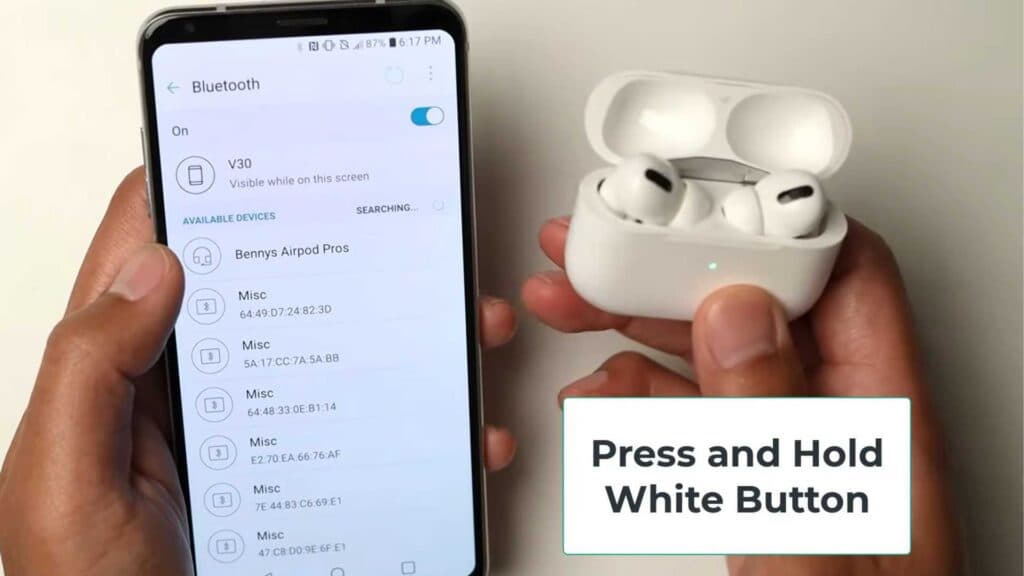
- Open the Settings menu on your phone and ensure your Bluetooth is toggled to on [0:12].
- Open the lid of your AirPods charging case [0:16].
- Press and hold the white button located on the back of the case until the indicator light starts flashing white [0:20].
- Look for your AirPods to appear in the Bluetooth menu on your screen and tap on them to complete the connection [0:34].
Ninja Tip: If your AirPods do not show up, try closing the case for ten seconds before reopening it to reset the pairing process. You can also ensure they are fully charged to make sure they have enough power to broadcast a signal.
If the connection still fails, perform a factory reset by holding the button on the back of the case for fifteen seconds until the light flashes amber, then go to Settings > Bluetooth and try the pairing process again.
Keep Reading


