How to Pair AirPods or Bluetooth Headphones to Google TV

By Trae Jacobs,

When you buy through our links, we may earn an affiliate commission.
Your Bluetooth headphones are not currently playing audio from your Google Chromecast or Google TV. You can resolve this by pairing them directly through your TV’s settings menu.
- Open the Settings menu by selecting the gear icon located in the upper right corner of your home screen. [0:16]
- Navigate down and select Bluetooth. [0:24]
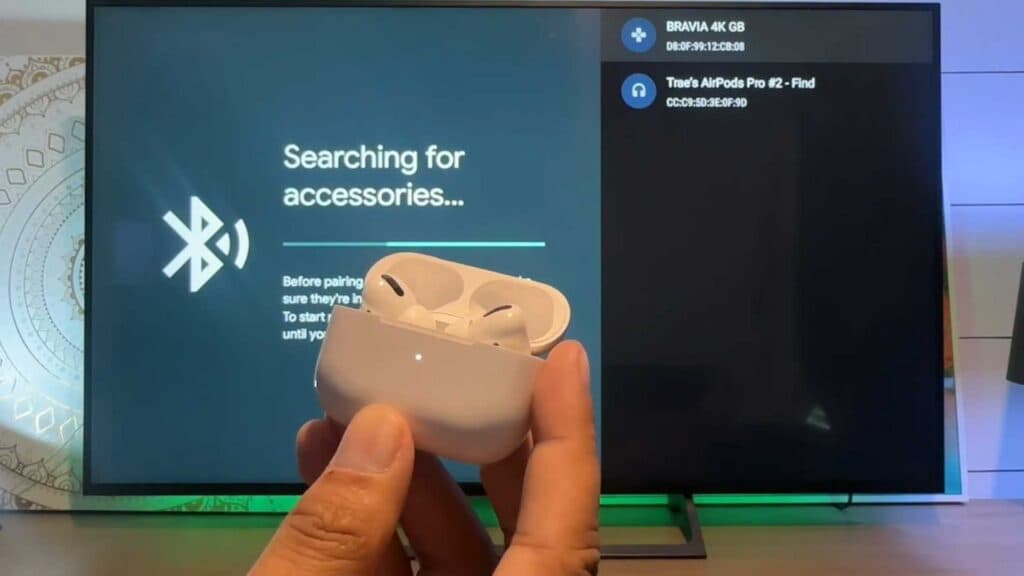
- Put your headphones into pairing mode by pressing and holding the button on the device until the light begins to blink white. [0:37]
- On your TV, select Pair remote or accessories. [0:44]
- Select your device from the list once it appears on the screen, then confirm by selecting Pair.
Ninja Tip: If your audio sounds delayed or out of sync after pairing, try toggling your TV’s audio output format to PCM or Stereo in the sound settings, as this often reduces processing latency.
If the connection persists in failing, you may need to perform a factory reset by navigating to Settings > System > About > Factory reset.
Keep Reading


