How to Mirror Your Mac Screen to a Roku TV

By Trae Jacobs,

When you buy through our links, we may earn an affiliate commission.
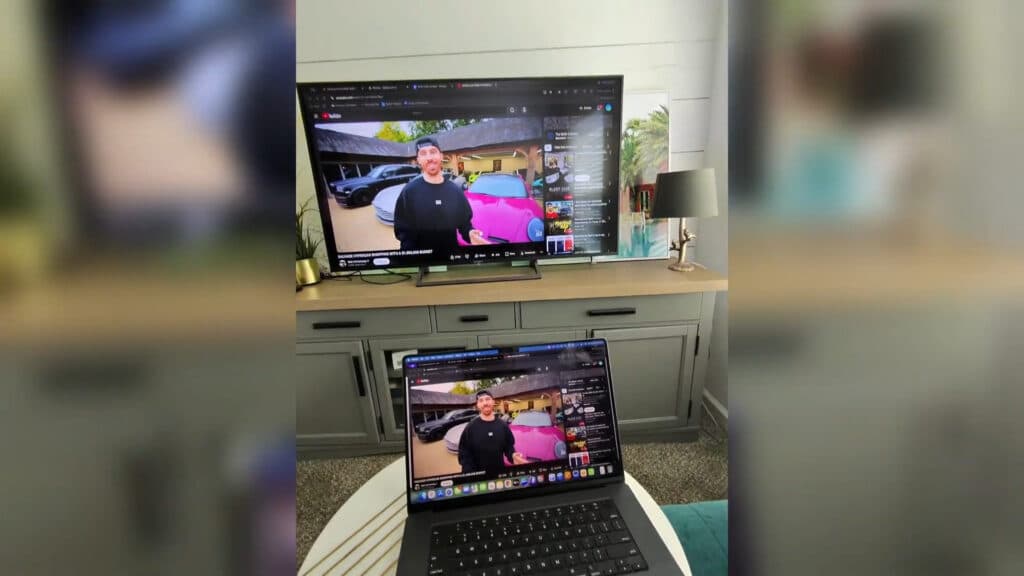
You are unable to view your MacBook screen on your Roku device. You can resolve this issue by using AirPlay to establish a wireless connection between your devices.
- Ensure your MacBook and Roku are connected to the same Wi-Fi network [0:41].
- Click the screen mirroring icon in your Mac’s top menu bar and select your Roku device from the list [0:26].
- Click the screen icon again and select “Change” if you want to switch between mirroring your entire screen, a specific window, or using the Roku as an extended display [1:03].
- Select your preferred display mode from the options provided to begin streaming your content.
- Press the screen mirroring icon in the menu bar and choose “Stop” to end the connection when you are finished.
Ninja Tip: If your Roku device does not appear in the menu, go to Settings > Apple AirPlay and HomeKit on your Roku TV and ensure AirPlay is toggled to “On.”
If you continue to experience connectivity issues, perform a factory reset by navigating to Settings > System > Advanced system settings > Factory reset.
Keep Reading
