How to Mirror Your iPhone to an LG TV

By Trae Jacobs,

When you buy through our links, we may earn an affiliate commission.
Your iPhone screen does not appear on your LG TV. You can fix this by following the steps below.
- Press the gear icon on your remote to open the Settings menu, then confirm your TV and phone are connected to the same Wi-Fi network. [0:29]
- Swipe down from the top right corner of your iPhone to open the Control Center and verify the device is on that identical Wi-Fi network. [0:58]
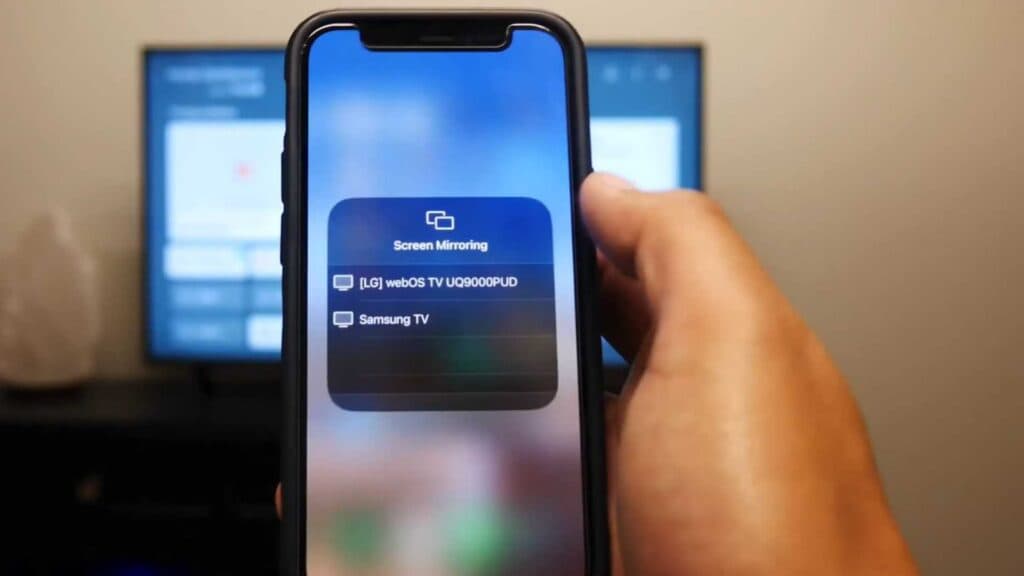
- Tap the screen mirroring icon, which looks like one window layered over another, and select your LG TV from the list. [1:11]
- Connect an iPhone to HDMI adapter to the back of your TV and your phone if your TV does not support wireless AirPlay.
Ninja Tip: If AirPlay still fails to connect, turn off both your TV and your router for sixty seconds, then plug them back in to refresh the connection handshake. This simple power cycle often clears hidden software glitches that prevent devices from seeing each other.
If the connection still fails, perform a factory reset by navigating to Settings > General > Reset to Initial Settings.
Keep Reading

