How to Merge Cells in Google Sheets

By Trae Jacobs,

When you buy through our links, we may earn an affiliate commission.
You have multiple cells in your spreadsheet that you need to combine into one large block. Follow these steps to merge them quickly and clean up your layout.
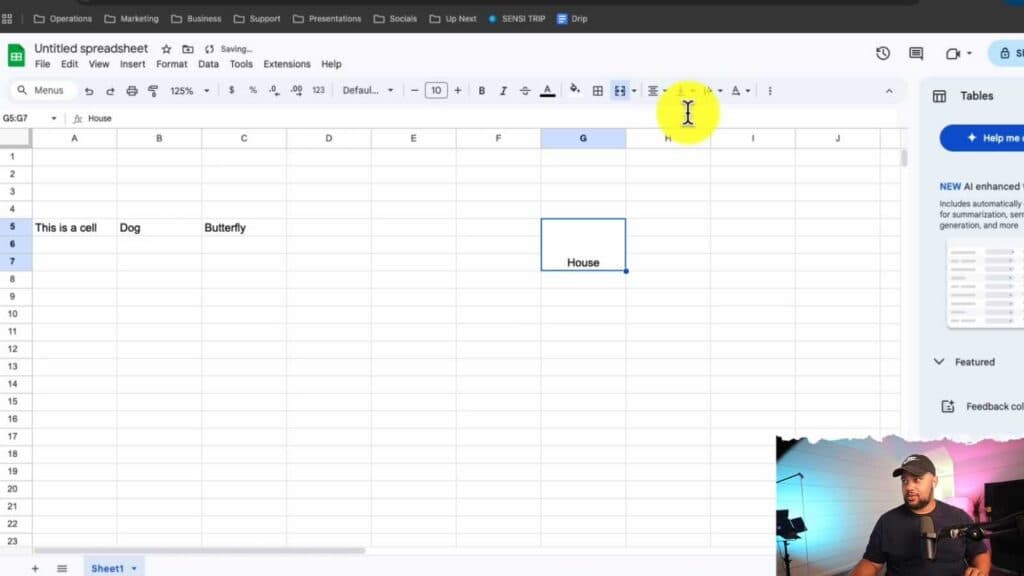
- Select the range of cells you want to combine. Go to the top menu, click Format, then select Merge cells and choose your preferred merge option [0:16].
- If your cells already contain data, remember that Google Sheets will only keep the value from the top-leftmost cell and will delete the information in the other cells [0:31].
- To merge cells that are already empty, highlight your range and select either Merge horizontally, Merge vertically, or Merge all under the format menu to customize your layout [1:50].
- Once your cells are merged, use the alignment controls in the top toolbar to center or reposition your text within the new, larger cell.
Ninja Tip: You can also unmerge cells at any time by selecting the merged cell and choosing “Unmerge” from the same “Merge cells” menu to instantly revert them back to their original state.
If you need to start over completely, you can reset your sheet formatting by going to Format > Clear formatting.
Keep Reading



