How to Manually Update Your Google TV

By Trae Jacobs,

When you buy through our links, we may earn an affiliate commission.
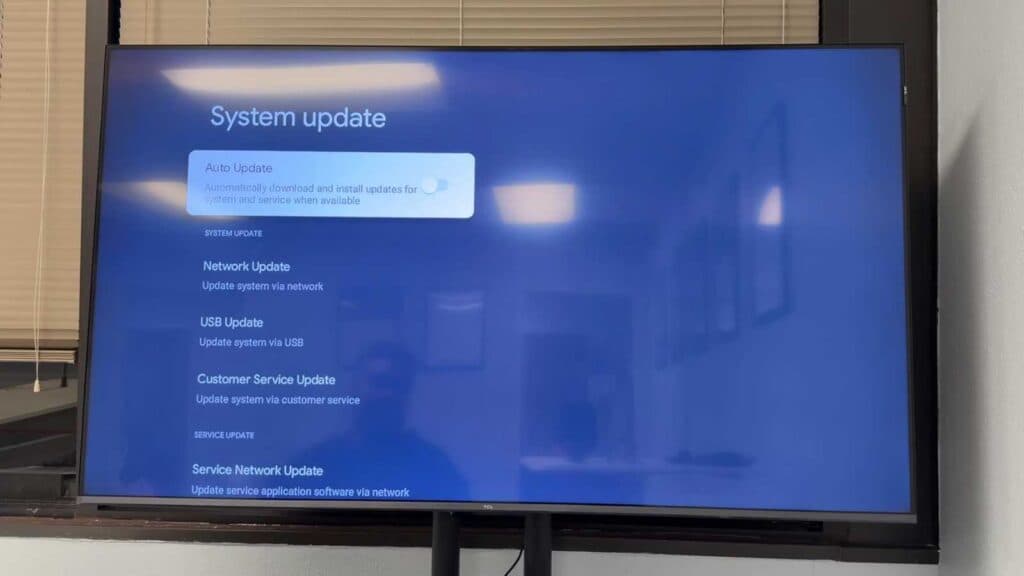
Your Google TV is running outdated software and needs a manual update. You can quickly resolve this by checking for and installing the latest firmware version yourself.
- Open your TV settings, select all settings, and navigate to the System menu [0:48].
- Select About and then click on System update to check for any pending downloads [1:02].
- If your update fails to install, clear the Google Play Services cache by going to Settings, then Apps, and selecting See all apps [2:43].
- Scroll down, select Show system apps, find Google Play Services in the list, and choose the option to clear the cache [2:55].
- If the update still won’t go through, disconnect your VPN or perform a soft reset by navigating to System and choosing the restart option.
Ninja Tip: You can also perform a hard power cycle by unplugging your TV from the wall for at least 60 seconds. This drains the capacitors and clears temporary glitches that might block the update process.
If the system still won’t update, perform a factory reset under Settings > System > About.
Keep Reading



