How to Manage iCloud Storage and Sync Settings on iPhone

By Trae Jacobs,

When you buy through our links, we may earn an affiliate commission.
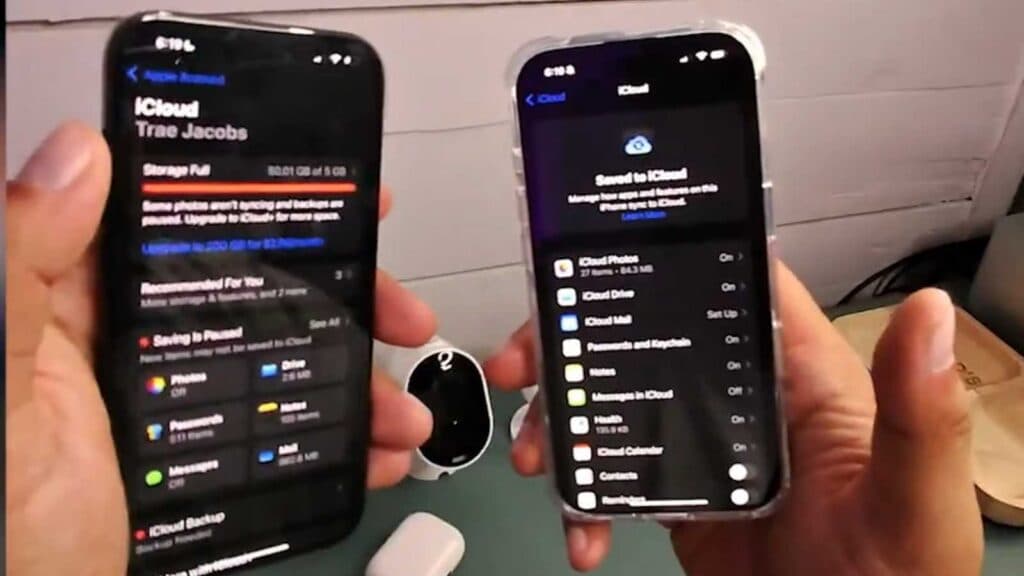
Your iCloud storage is full and is preventing you from syncing your data across your devices. You can resolve this by adjusting which apps are allowed to save data to iCloud.
- Open the Settings app on your iPhone. [0:24]
- Scroll down and tap on iCloud to view your account details. [0:26]
- Select See All next to the “Saved to iCloud” section to see a full list of apps using your storage. [0:36]
- Toggle off the switch for any apps you do not want to sync with iCloud to free up space. [0:46]
- Review your list of synced apps periodically and disable any that you don’t need backed up to keep your storage usage under control.
Ninja Tip: Check your “iCloud Backups” settings to see if your phone is storing massive, unnecessary data files from apps you rarely use, as disabling these can save gigabytes of space. You can find this by going to Settings > [Your Name] > iCloud > iCloud Backup.
If you still need more space after clearing your sync settings, you can purchase additional storage through Settings > [Your Name] > iCloud > Manage Account Storage > Upgrade.
Keep Reading



