How to Manage and Remove Location Tags from iPhone Photos

By Trae Jacobs,

When you buy through our links, we may earn an affiliate commission.
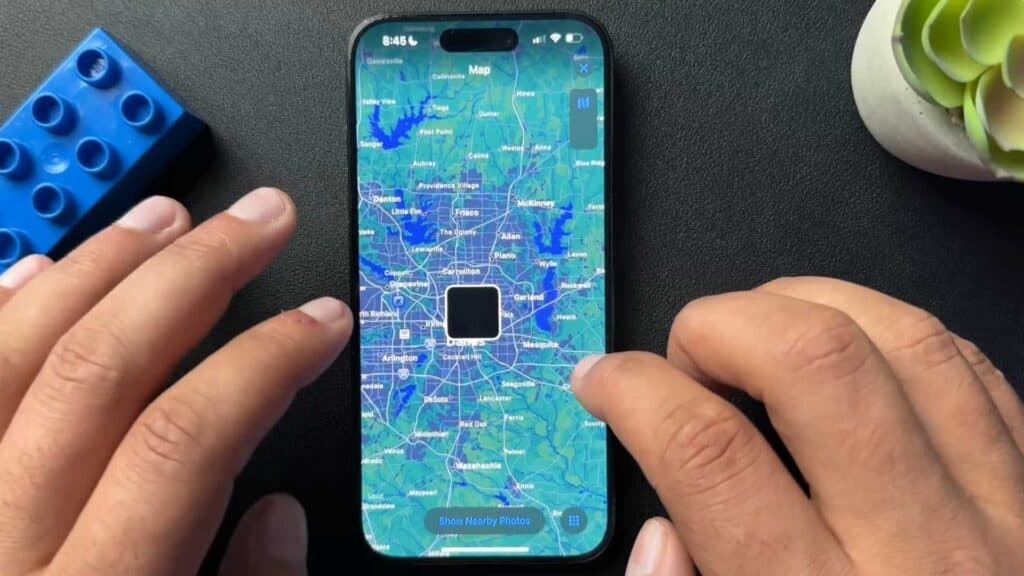
Your iPhone automatically saves location data to the photos you take. You can control these settings and remove location information before sharing your pictures with others.
- To add a location to a photo manually, open the image in your Photos app, swipe up to reveal the metadata, and tap the option to add a location [0:35].
- To enable automatic location tagging, go to Settings, scroll down to Privacy & Security, and select Location Services [1:13].
- Tap on the Camera app settings and set it to “While Using the App” and ensure “Precise Location” is toggled on [1:26].
- When sharing a photo, tap the share icon and select Options at the top of the menu, where you can disable the Location toggle to strip the geotag data before sending the image.
Ninja Tip: You can view all your geotagged photos at once by opening the Photos app, tapping the Search tab, and selecting the “Places” album to see every photo you’ve taken mapped out globally.
If you want to completely disable location tracking for all apps, go to Settings > Privacy & Security > Location Services and toggle the main Location Services switch to off.
Keep Reading



