How to Make Your Facebook Profile Private

By Trae Jacobs,

When you buy through our links, we may earn an affiliate commission.
Your Facebook account is currently exposed to people you do not know. You can lock down your settings to protect your privacy.
- Open the menu in your bottom navigation bar and tap the settings wheel to access your privacy settings [0:25].
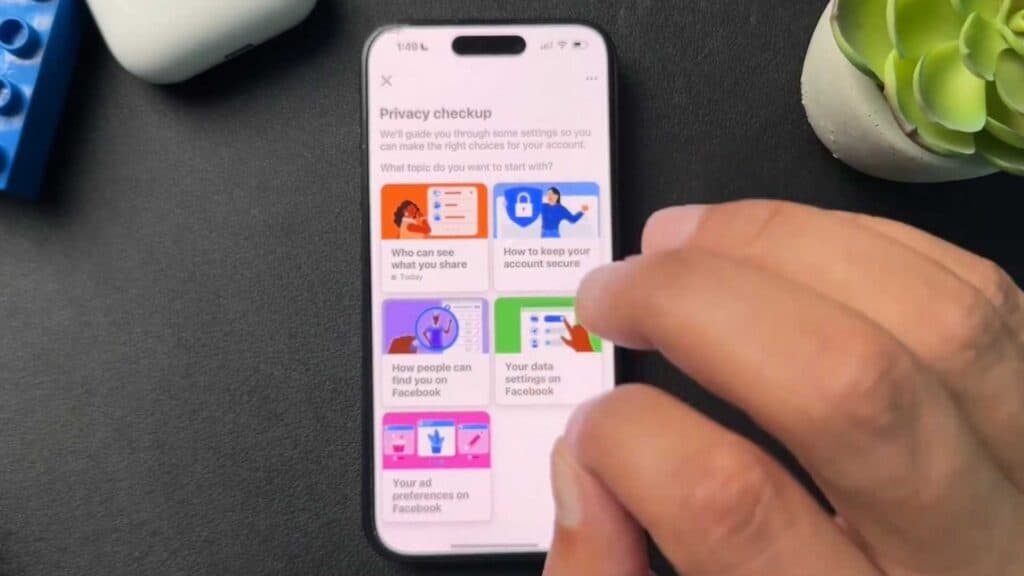
- Select Privacy Checkup under the Tools and resources section to follow a guided walkthrough of your security options [0:46].
- Review who can see your personal information, such as your phone number and email, and set these to Only me to restrict access [1:16].
- Navigate to the Posts and stories section to adjust your default audience and limit the visibility of your past posts [2:22].
- Go back to the main settings menu and select Audience and visibility to manually configure specific permissions for your future posts [3:27].
- Adjust your Profile and tagging settings to control who can post on your profile and who can see the content you are tagged in [4:12].
- Visit your profile page, tap the three dots, and open the Privacy Center to review your activity and privacy settings one last time.
Ninja Tip: Check your Facebook app’s Location Services in your phone’s system settings and disable ‘Always Allow’ to prevent the platform from tracking your physical whereabouts in the background.
If you need to completely clear your digital footprint, you can deactivate or delete your account by going to Settings > Accounts Center > Personal details > Account ownership and control.
Keep Reading



