How to Make a Conference Call on iPhone

By theblogfixer,

When you buy through our links, we may earn an affiliate commission.
You need to speak with multiple people at once on your iPhone. You can set this up quickly by following these steps.
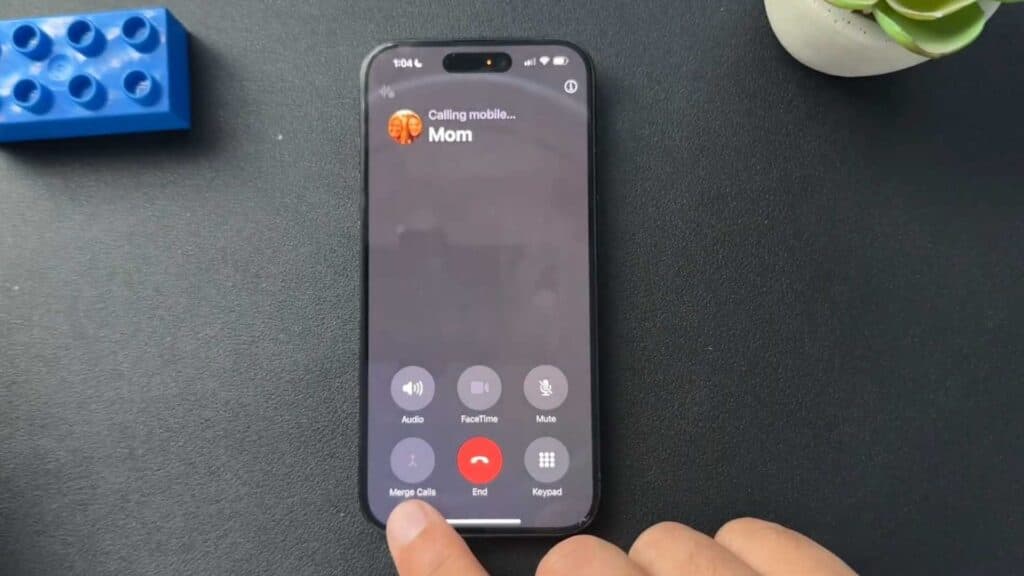
- Start a phone call with the first person and wait for them to answer so the “Add” button becomes active [0:28].
- Tap the “Add” button and select the next person you want to include from your contacts, recent calls, or favorites [0:47].
- Once the second person answers, tap the “Merge Calls” button to combine the lines [1:22].
- Repeat these steps to add more participants, as your iPhone supports up to five people on a single conference call.
Ninja Tip: If you need to drop one person from the conference without hanging up on everyone, tap the “i” icon (or “Conference” button) at the top of the screen to see the list of participants and select the “End” button next to the specific caller.
If you continue to experience issues with dropped calls or merging, check your connection settings at Settings > General > Reset > Reset Network Settings.
Keep Reading



