How to Loop a YouTube Video on Your Smart TV

By Trae Jacobs,

When you buy through our links, we may earn an affiliate commission.
Your YouTube videos stop playing after the current video ends, forcing you to manually restart them. You can fix this by creating a custom playlist and enabling the repeat function.
- Find the video you want to loop on your computer or phone and tap the three-dot icon to select Save [0:36]. Choose to create a new playlist, give it a name, and keep it private [0:40].
- Open the YouTube app on your smart TV or streaming device and ensure you are signed into the same account [1:08].
- Navigate to your Library and select the playlist you just created [1:22].
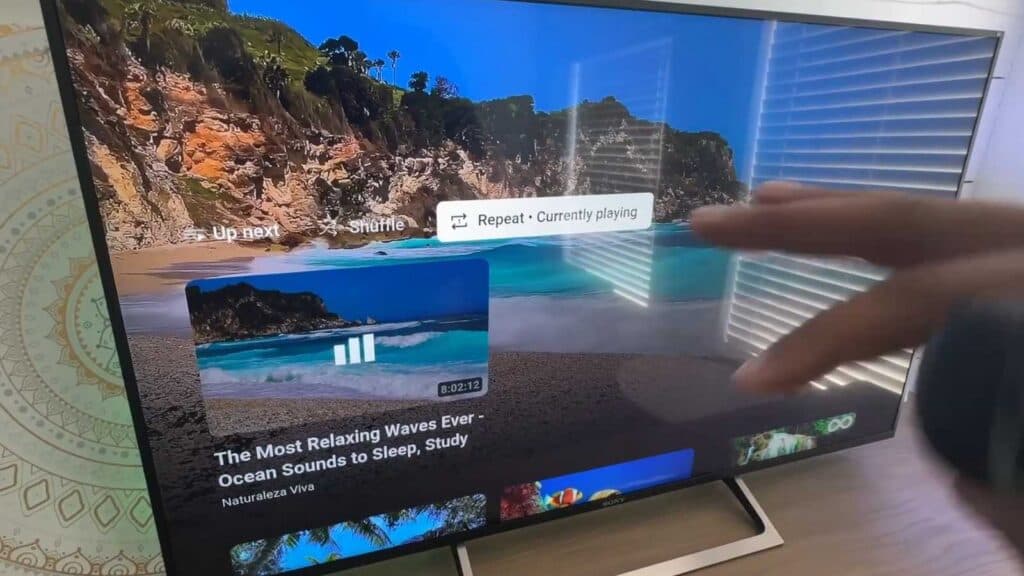
- Select your video, scroll down to the playback options, and choose the repeat icon to set the playlist to loop continuously [1:35].
Ninja Tip: If you want to keep the video running without creating a playlist, you can search for a “10-hour version” of the video, which is often uploaded by creators specifically to provide long-form background audio.
If your app continues to fail, you can perform a factory reset by navigating to Settings > System > Advanced system settings > Factory reset.
Keep Reading