How to Lock Your Photos App and Hide Pictures on iPhone

By Trae Jacobs,

When you buy through our links, we may earn an affiliate commission.
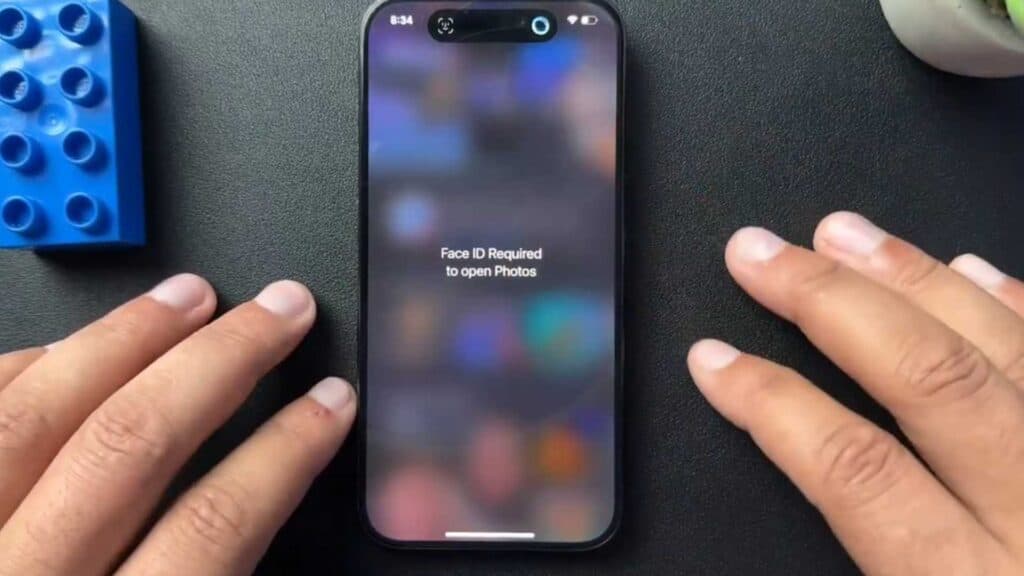
Your iPhone Photos app is open to anyone who has access to your unlocked device. You can secure your private images by using the built-in Face ID protection and hidden folder features.
- Long-press the Photos app icon on your home screen and select “Require Face ID” to lock the entire application [0:37].
- To remove this lock, long-press the app icon again and select “Don’t Require Face ID” [1:02].
- To secure specific images, open a photo, tap the three dots in the top-right corner, and choose “Hide” [1:21].
- You can find these private images by scrolling to the “Utilities” section and opening the “Hidden” folder, which requires your Face ID to access.
Ninja Tip: You can also keep your photos extra secure by disabling the “Show Holiday Events” or “Show Featured Content” settings in Settings > Photos, which prevents private images from randomly popping up in your memories or widgets.
If you still need more control over your privacy, you can reset your device’s privacy settings by going to Settings > General > Transfer or Reset iPhone > Reset > Reset Location & Privacy.
Keep Reading



