How to Lock or Hide Apps on iPhone

By Trae Jacobs,

When you buy through our links, we may earn an affiliate commission.
Your apps are visible on your home screen, and you want to secure or hide them from view. You can adjust your iPhone settings to require Face ID or move these apps into a hidden folder.
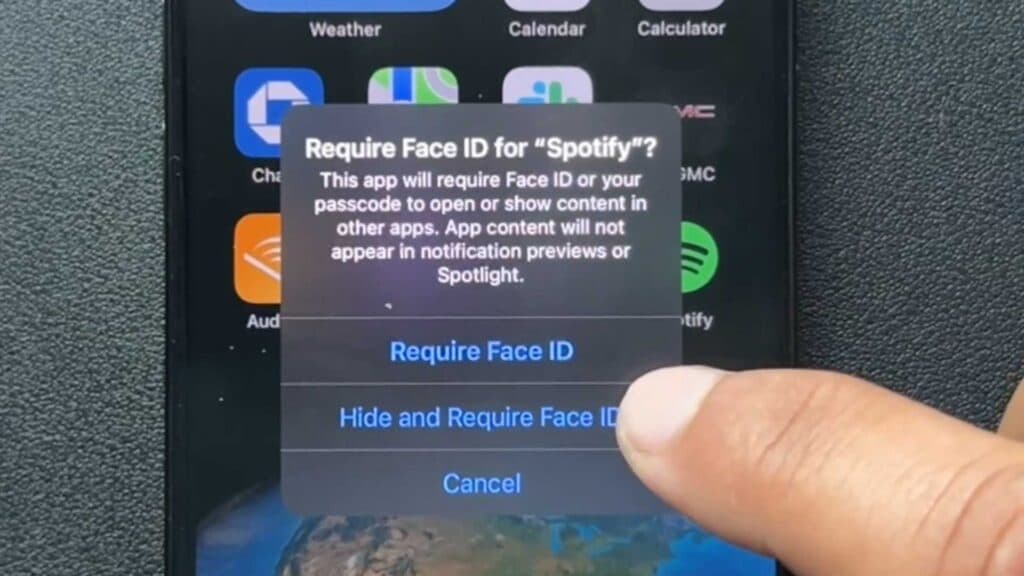
- Press and hold the app icon you want to modify and select the Require Face ID option from the menu [0:30].
- Choose Require Face ID to simply lock the app, or select Hide and Require Face ID to remove it from your home screen entirely [0:40].
- To open a hidden app, swipe to the right until you reach your App Library, scroll to the bottom, and tap the Hidden category [1:58].
- To unhide an app, press and hold the icon in the hidden folder and select Don’t Require Face ID [2:31].
- If the app disappears after unhiding it, swipe down in the App Library, press and hold the actual icon—not the text name—and choose Add to Home Screen.
Ninja Tip: Remember that hidden apps will not show up in Spotlight search results, so you must always go through the App Library folder to launch them.
If you need to reset all your privacy and app settings, go to Settings > General > Transfer or Reset iPhone > Reset > Reset All Settings.
Keep Reading



