How to Install and Stream Netflix on Your Samsung TV

By Trae Jacobs,

When you buy through our links, we may earn an affiliate commission.
Netflix is missing from your Samsung TV app list. You can fix this by downloading the application directly or casting it from your mobile device.
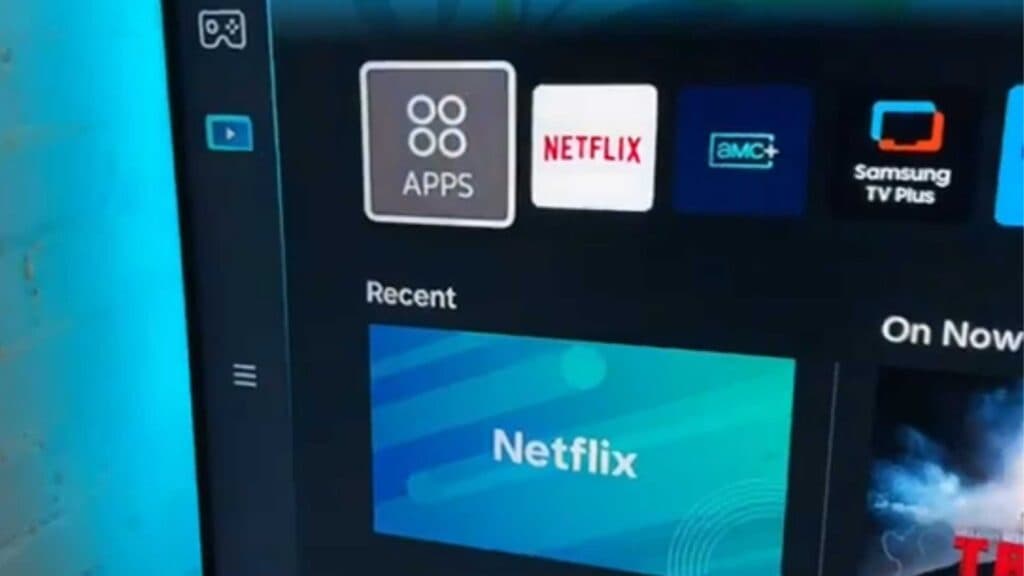
- Open the apps menu on your TV and select the search icon to type in “Netflix.” [0:44]
- Select the Netflix app from the search results and click the install button to add it to your TV. [1:14]
- To stream from your phone or tablet, open the Netflix app on your device, start playing a video, and tap the cast icon at the top of the screen. [1:41]
- Select your specific Samsung TV from the list of available devices to start the stream.
Ninja Tip: If your app is behaving strangely or won’t launch, try performing a power cycle by holding down the power button on your remote until the TV logo appears to force a full restart. This often clears out temporary cache issues without losing your installed apps.
If the application still fails to load, you can perform a factory reset by navigating to Settings > General > Reset.
Keep Reading