How to Install a Google Chromecast on a Samsung TV

By Trae Jacobs,

When you buy through our links, we may earn an affiliate commission.
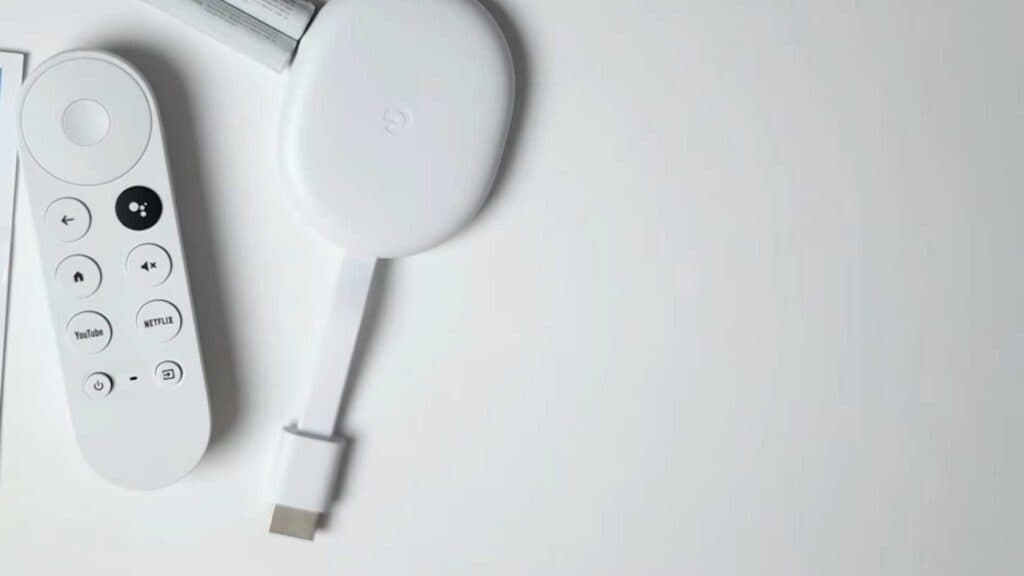
Your Samsung TV does not currently have Google Chromecast set up to stream your media. You can finish the installation by following these steps.
- Insert the AAA batteries into your Chromecast remote [0:50].
- Connect the power cable to the adapter and plug it into the back of your Chromecast device [1:05].
- Insert the HDMI end of your Chromecast into an available HDMI port on your TV and power it on [1:28].
- Press the Source button on your Samsung remote and select the HDMI port where you plugged in the device [2:06].
- Open the Google Home app on your phone and tap the option to set up a new device [2:41].
- Follow the on-screen instructions to link your Google account and connect to your home Wi-Fi network [3:58].
- Install your preferred streaming apps and complete the final system updates to finish the setup [9:17].
Ninja Tip: Disable the HDMI-CEC setting on your TV if you experience unexpected power or volume conflicts between your Samsung remote and the Chromecast remote.
If you need to start over, you can perform a factory reset by navigating to Settings > System > About > Factory Reset.
Keep Reading



