How to Insert and Link a Google Sheets Chart Into Google Docs

By Trae Jacobs,

When you buy through our links, we may earn an affiliate commission.
Your chart is not showing up in your Google Doc. You can link your Google Sheet directly to your document to resolve this.
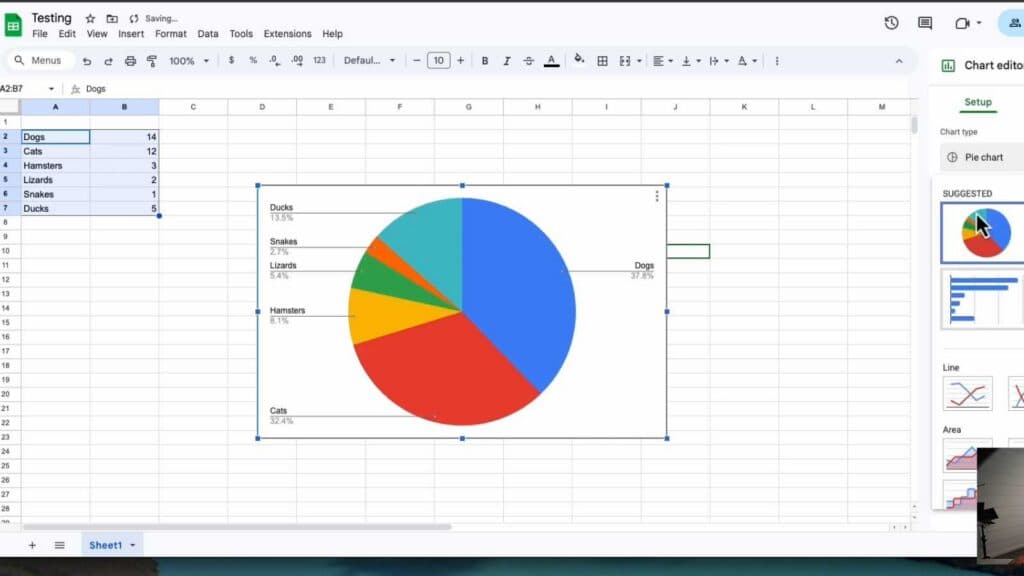
- Open your Google Sheet, highlight your data, and click Insert then Chart to create the visual representation of your data [0:28].
- Open your Google Doc, go to the Insert menu, select Chart, and choose From Sheets [0:50].
- Select the specific spreadsheet containing your chart, click Insert, and then click the chart again to activate the Import button [1:02].
- Whenever you change the data in your Google Sheet, return to the chart in your Google Doc and click the Update button to sync the new information.
Ninja Tip: If you want your data to update without clicking the button every time, you can also use the “Paste special” feature to link cells directly, which often preserves formatting better than inserting a full chart object.
If the chart fails to link or display properly, clear your browser cache by going to Settings > Privacy and security > Clear browsing data.
Keep Reading



