How to Insert a Video Into Google Slides

By Trae Jacobs,
When you buy through our links, we may earn an affiliate commission.
You need to add a video file into your Google Slides presentation. You can fix this by using the built-in insert menu to pull content from your drive or YouTube.
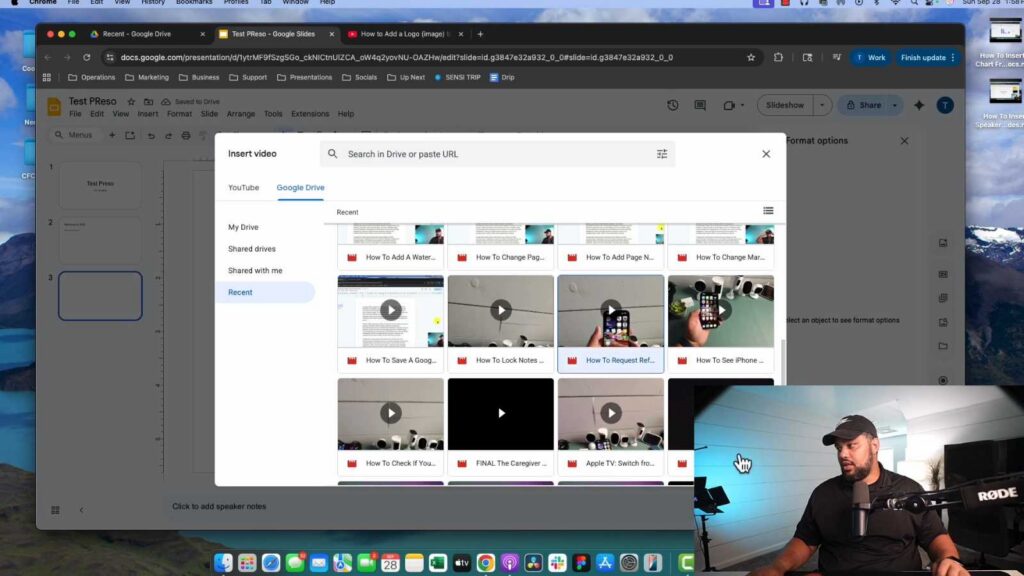
- Open your presentation, go to the top menu, and select Insert, then click Video [0:17].
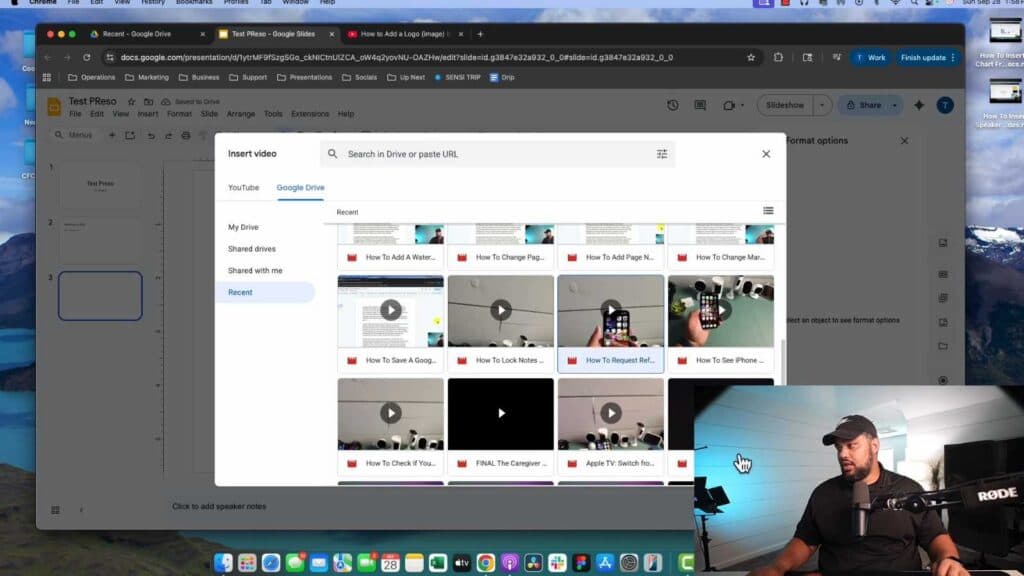
- Choose to search for a video on YouTube or select a file directly from your Google Drive [0:24].
- If you are inserting from your Drive, select the file and click Insert [0:49].
- Hold the Shift key while resizing the video to ensure it maintains the correct aspect ratio without distorting [1:09].
- If you are adding a YouTube video, select the YouTube tab, paste the video link into the search bar, and hit enter to select and insert it [1:30].
- Click on the video and use the Format options sidebar to adjust playback settings, such as setting a specific start time, muting the audio, or choosing whether the video plays on click or automatically [1:57].
- Click and drag the video to position it on your slide or use the alignment tools found in the format menu to center it.
Ninja Tip: If your video isn’t loading, check your Google Drive sharing permissions to ensure the file is set to “Anyone with the link can view” so your audience can see the video during the presentation.
If you encounter persistent playback errors, try clearing your browser cache by going to Chrome settings > Privacy and security > Clear browsing data.
Keep Reading



