How to Increase Closed Caption Size on an LG TV

By Trae Jacobs,

When you buy through our links, we may earn an affiliate commission.
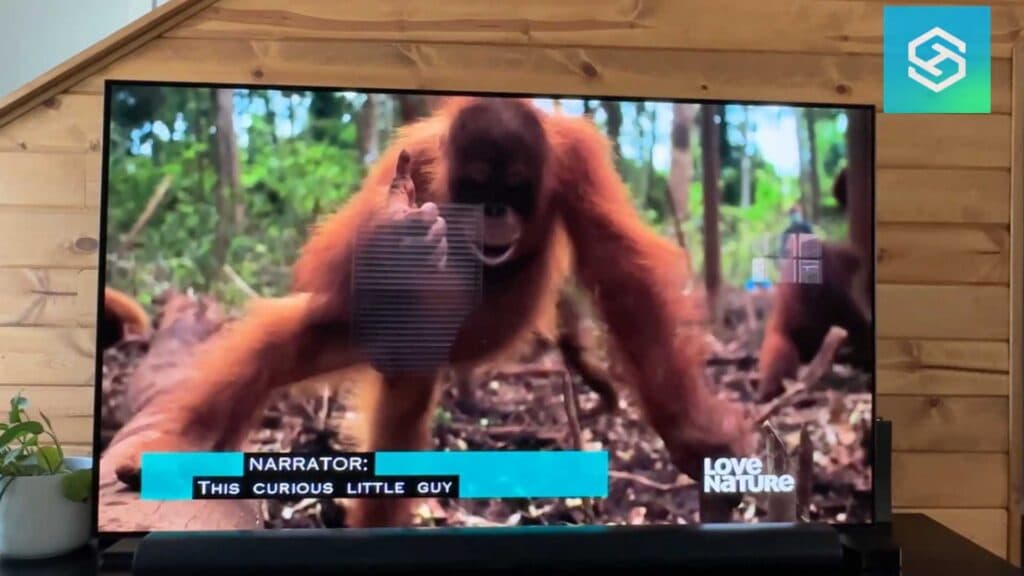
The closed captions on your LG TV are too small and difficult to read. You can adjust these settings to make them larger and more visible.
- Open your settings menu by pressing the gear icon on your remote [0:18].
- Select the All Settings option to view the full menu [0:22].
- Scroll down to the Accessibility section and select it [0:28].
- Choose the Closed Captions option to begin customizing your view [0:31].
- Select the Digital Mode option and then choose the HD Mode setting [0:42].
- Adjust the Size setting to Large to increase the text readability [0:57].
- Select your preferred Font Type from the available options [1:09].
- Modify the text color or window opacity if you want to further improve the contrast [1:32].
Ninja Tip: If you use streaming apps like Netflix or YouTube, they often have their own internal subtitle settings that override the TV’s system defaults; check those specific app menus if you don’t see changes on your favorite shows.
If these settings do not provide the readability you need, try performing a factory reset by navigating to Settings > General > System > Reset to Initial Settings.
Keep Reading


