How to Improve the User Experience on Your LG OLED TV

By Trae Jacobs,

When you buy through our links, we may earn an affiliate commission.
Your LG OLED TV remote pointer keeps appearing on the screen while you are trying to navigate your content. You can manage this and optimize your viewing setup with a few simple adjustments.
- Use a separate streaming device like an Apple TV 4K to bypass the built-in smart TV interface for a smoother, more consistent experience [0:54].
- Adjust your viewing environment if you struggle to see details in dark scenes, as the deep blacks on an OLED display can sometimes hide elements in a dim room [1:14].
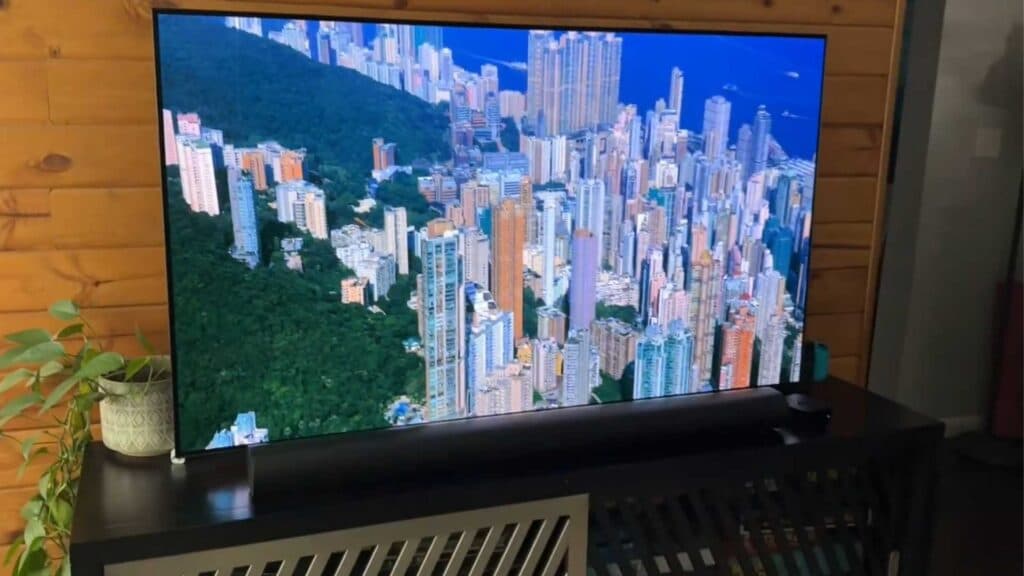
- Mount or place the TV carefully to highlight its thin design, as these models are significantly slimmer than standard LED TVs [1:33].
- Simply ignore the on-screen remote pointer, as there is currently no native setting to permanently disable this specific feature.
Ninja Tip: If you want to stop the pointer from popping up, keep the remote completely still on a flat surface or use the physical directional navigation buttons instead of moving your wrist to “point” at the screen.
For a full software refresh, perform a factory reset by navigating to All Settings > General > System > Reset to Initial Settings.
Keep Reading



