How to Get Accurate ChatGPT Summaries of YouTube Videos

By Trae Jacobs,

When you buy through our links, we may earn an affiliate commission.
ChatGPT refuses to directly access your YouTube video links. You can resolve this issue by using metadata instead of URLs to generate your summaries.
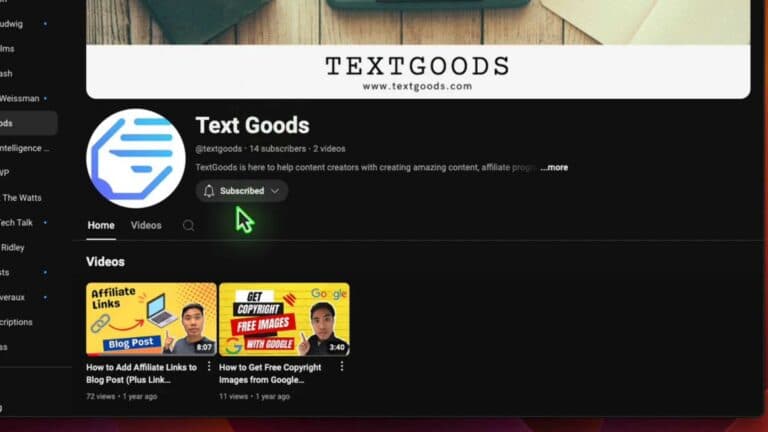
- Copy the title and the name of the channel for the video you want to summarize [0:46].
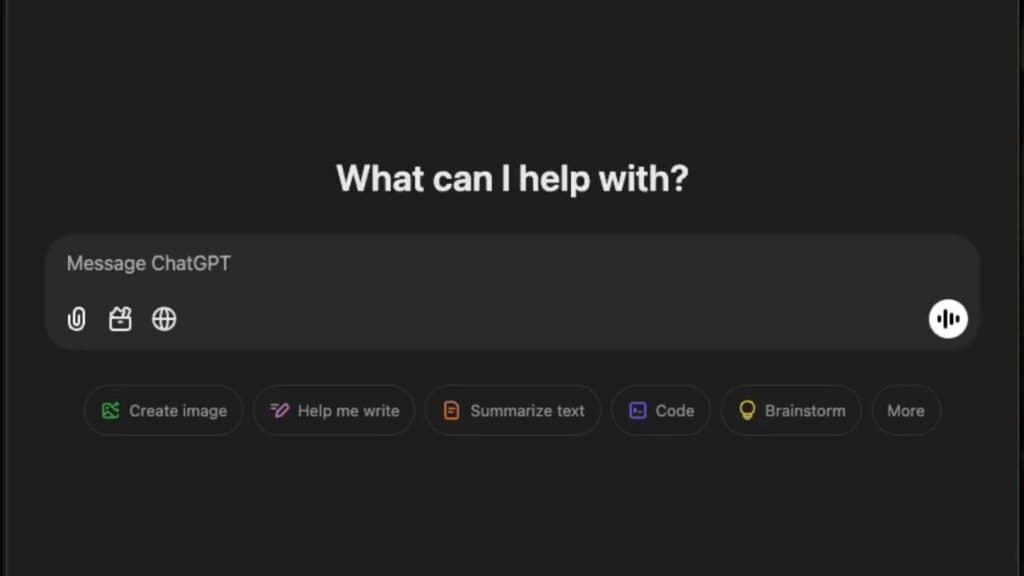
- Open ChatGPT and enter a prompt using the format, “Summarize the video titled [Video Title] by [Channel Name].”
- Review the summary that ChatGPT generates based on the video transcript [1:15].
- Ask for specific insights by requesting the information you need, such as, “Give me the top insights and apply them to [your specific need or profession].”
- Use the generated summary and tailored insights for your projects, career, or personal learning.
Ninja Tip: If ChatGPT still struggles to find the video, copy the video’s transcript directly from the YouTube description or the “Show Transcript” menu and paste the text into the chat window for an instant, guaranteed summary.
For a clean slate, clear your browser cache and cookies by going to Settings > Privacy and Security > Clear browsing data.
Keep Reading