How to Forget and Reconnect to a Wi-Fi Network on iPhone

By Trae Jacobs,

When you buy through our links, we may earn an affiliate commission.
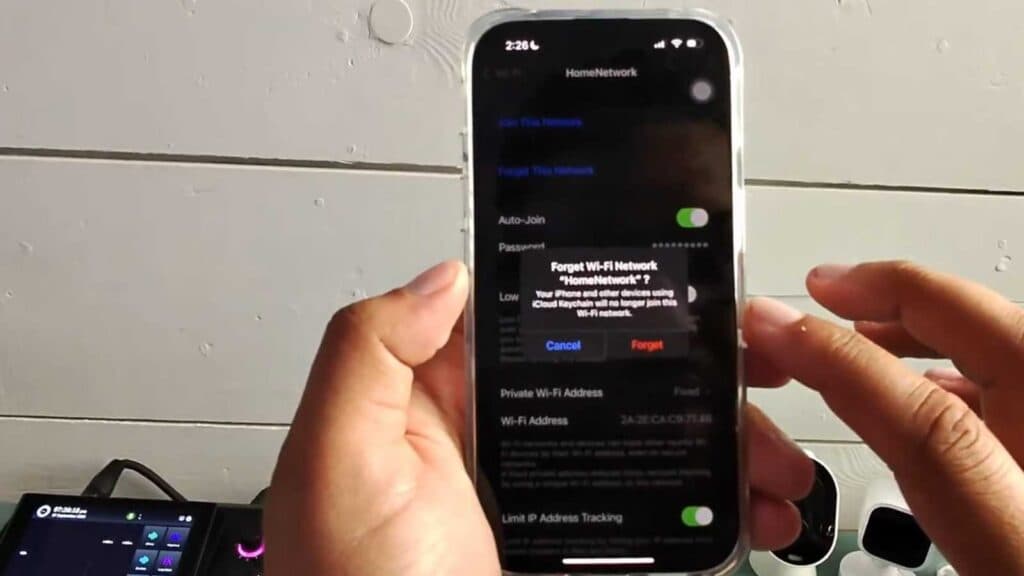
Your iPhone automatically joins a Wi-Fi network that is causing connectivity issues. You can fix this by removing the network from your saved list and reconnecting fresh.
- Open your iPhone Settings and select Wi-Fi [0:15].
- Find the network you want to remove and tap the blue info button next to it [0:27].
- Tap Forget This Network at the top of the screen, then confirm your choice to stop your devices from automatically joining this connection [0:31].
- Select the same network from your available Wi-Fi list, enter the password, and hit join to establish a new connection.
Ninja Tip: If you are still having connection issues after forgetting the network, toggle your iPhone’s Airplane Mode on for ten seconds and then off again to force a full reset of the wireless radio.
If you continue to experience network failures, perform a network settings reset by going to Settings > General > Transfer or Reset iPhone > Reset > Reset Network Settings.
Keep Reading



