How to Force Your iPhone Camera Flash to Stay On

By Trae Jacobs,

When you buy through our links, we may earn an affiliate commission.
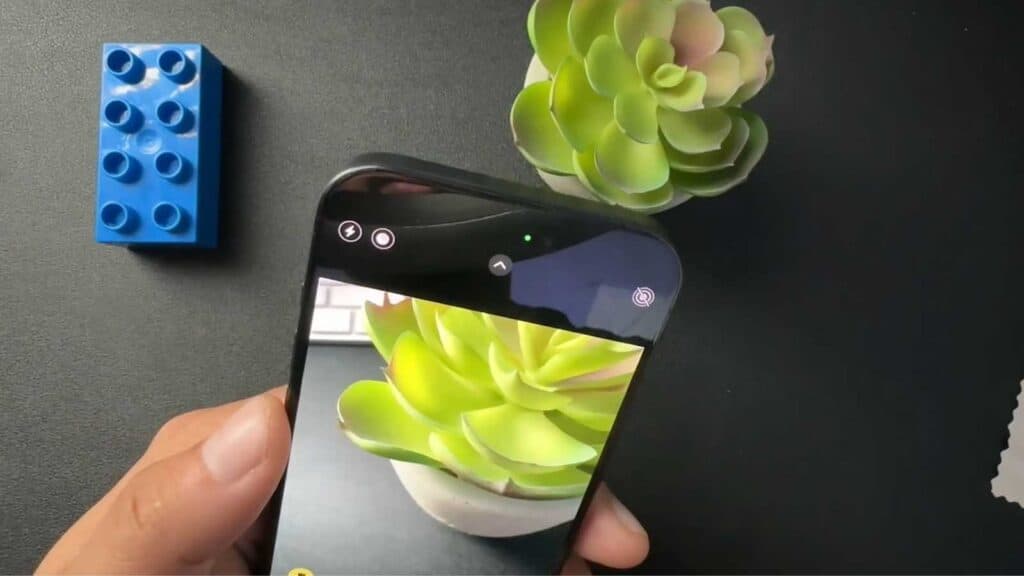
Your iPhone camera flash stays in Auto mode instead of firing every time you take a photo. You can manually force the flash to stay on for every shot.
- Open the Camera app and tap the lightning bolt icon at the top of the screen to reveal your flash options [0:14].
- Press and hold that same lightning bolt icon until you see a menu appear [0:41].
- Select “On” from the menu, which will cause the icon to turn yellow, confirming that the flash is now forced to fire for every photo.
Ninja Tip: If you want to brighten your photos without a harsh flash, try using the “Exposure” slider by tapping the screen and swiping the sun icon up to lighten your image before taking the shot.
If the camera app continues to malfunction, go to Settings > General > Transfer or Reset iPhone > Reset > Reset All Settings.
Keep Reading


