How to Fix YouTube Voice Search on Your Smart TV

By Trae Jacobs,

When you buy through our links, we may earn an affiliate commission.
Your YouTube voice search feature is not responding to your commands on your Smart TV. Follow these steps to restore your voice control functionality.
- Check your remote control usage, as some devices require you to press and hold the audio button rather than just tapping it once [0:20].
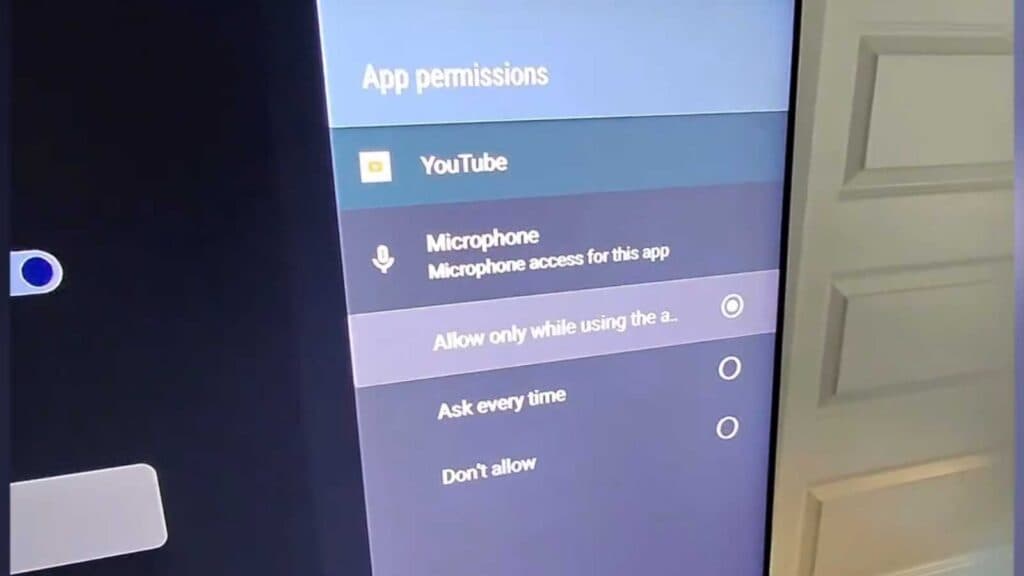
- Navigate to your TV’s settings menu, select “Privacy,” and then go to “Microphone” to ensure microphone access is toggled on [0:48].
- Within the microphone settings, check the app permissions and change YouTube from “Not allowed” to “Allow while using the app” [1:01].
- Verify that your TV’s voice assistant is enabled, as you may need to complete the initial setup process for the assistant to gain access to your apps.
Ninja Tip: Check for a pending firmware update in your TV’s settings menu, as outdated system software often prevents the voice recognition service from communicating properly with the YouTube app.
If the issue persists, you can perform a full factory reset by navigating to Settings > Support > Self Diagnosis > Reset.
Keep Reading