How to Fix YouTube Buffering and Slow Playback on Smart TV

By Trae Jacobs,

When you buy through our links, we may earn an affiliate commission.
Your YouTube videos are buffering and taking too long to load on your smart TV. You can improve your playback speed and fix these connection issues by following a few simple steps.
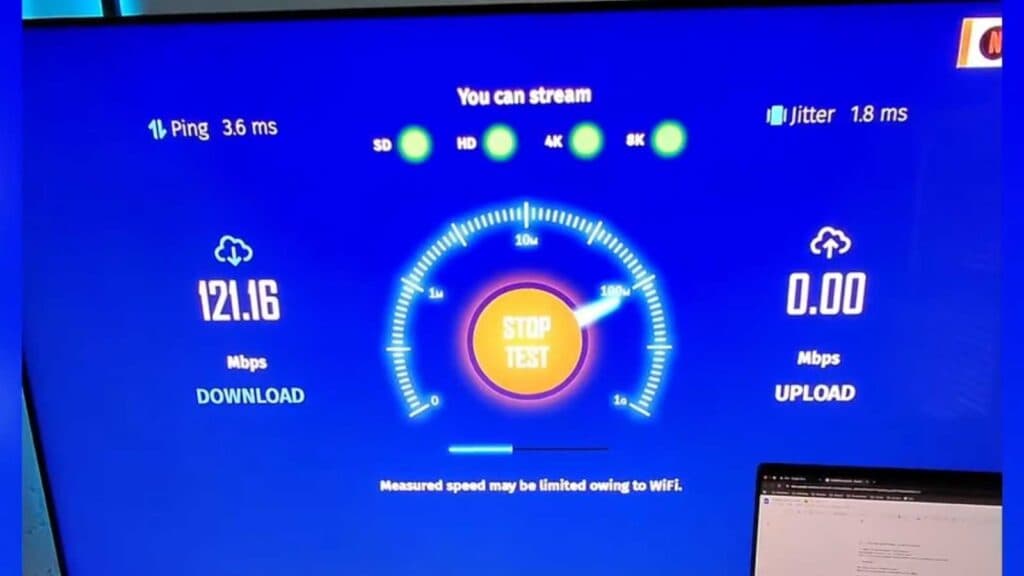
- Run an internet speed test using an app on your TV to see if your connection is strong enough for streaming. If your results are below 15 to 25 Mbps, move your router closer to the TV or plug it in directly with an Ethernet cable to get a better signal [0:25].
- Open the settings menu inside the YouTube app while playing a video to manually adjust the quality. Lowering the resolution from 4K to HD or 1080p reduces the bandwidth your TV requires [1:31].
- Clear the app cache by navigating to your TV’s main settings menu. Find the app management section, select YouTube, and choose the option to clear the cache [2:18].
Ninja Tip: Disable “Motion Smoothing” or “Action Smoothing” in your TV’s picture settings to reduce the processing load on your TV’s CPU, which helps the system handle streaming tasks more smoothly.
If these steps do not resolve the issue, perform a factory reset through Settings > Support > Self Diagnosis > Reset.
Keep Reading