How to Fix YouTube Autoplay Not Working on Your Smart TV

By Trae Jacobs,

When you buy through our links, we may earn an affiliate commission.
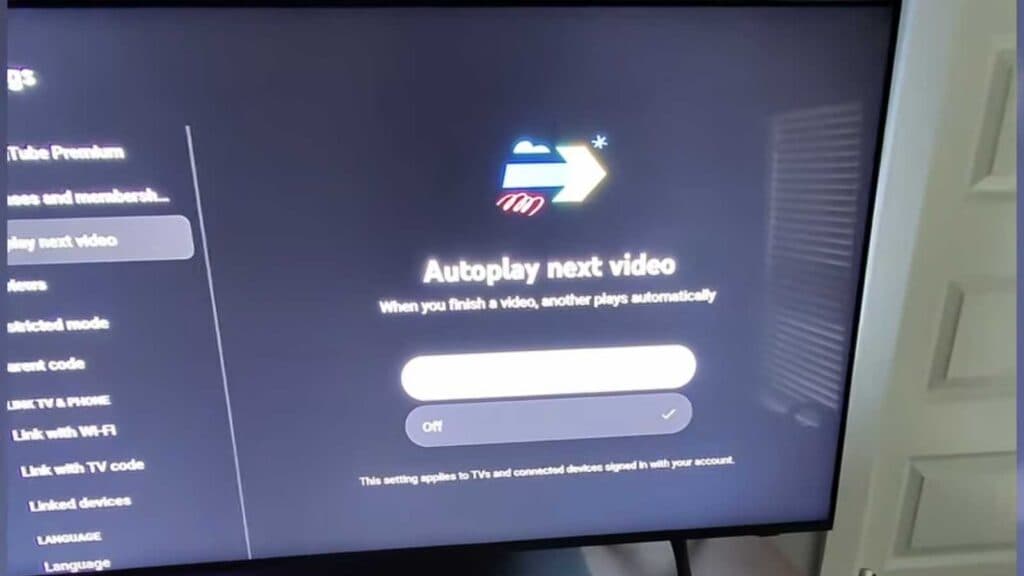
Your YouTube videos stop playing after the current video ends instead of moving on to the next one. You can follow these steps to restore the autoplay feature on your television.
- Open the YouTube app and navigate to the settings menu to ensure “Autoplay next video” is toggled to the on position. [0:52]
- Sign out of your current account, then sign back in to refresh your user profile settings. [1:07]
- Turn your TV off, unplug it from the power source for two minutes, and plug it back in to dissipate any electrical buildup. [1:13]
- Navigate to your device’s settings menu, locate your apps list, select YouTube, and choose the option to clear the cache. [1:46]
- Check if you are signed into a kids’ account, as these profiles do not support the autoplay feature.
Ninja Tip: Check your TV’s global “Auto-play” settings within your main system menu or under the privacy/playback section, as some smart TVs have a secondary overlay setting that can override individual app preferences.
If the issue persists, perform a factory reset through Settings > Support > Self Diagnosis > Reset.
Keep Reading

