How to Fix Wi-Fi Connection Issues on Your LG TV

By Trae Jacobs,

When you buy through our links, we may earn an affiliate commission.
How to Fix Wi-Fi Connection Issues on Your LG TV
Your LG TV is not connecting to your Wi-Fi network. You can resolve this issue by following a few simple troubleshooting steps.
- Perform a soft reset by unplugging your TV from the power outlet for at least one minute to clear out any residual electricity [0:25].
- Run a speed test on your TV’s web browser or by placing your phone next to the TV to verify if your Wi-Fi signal is weak [0:50].
- Reduce network congestion by opening your router’s app, such as the Google Home app, to see which devices are connected and remove any that are hogging bandwidth [1:20].
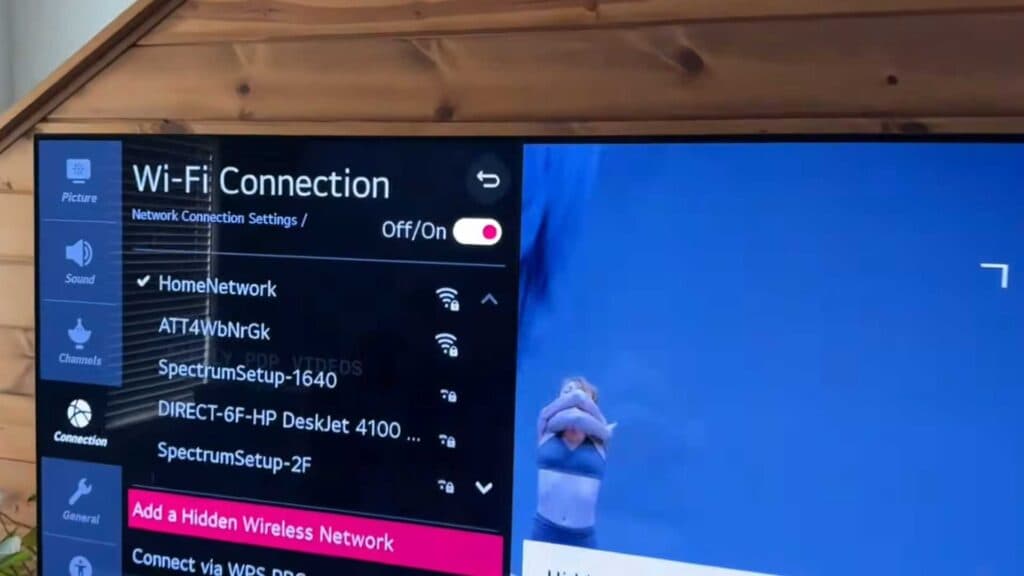
- Verify your Wi-Fi password by navigating to the network settings on your TV to ensure the credentials were entered correctly [1:45].
- Check for software updates in the support section of your TV’s menu to ensure you are running the latest firmware [2:00].
- Restart your router by unplugging it for 60 seconds or using the remote restart option within your router’s dedicated app [2:25].
- Connect your TV directly to the router using an Ethernet cable for the most reliable connection possible.
Ninja Tip: Change your router’s Wi-Fi channel from ‘Auto’ to a static, less crowded channel like 1, 6, or 11 in your router settings to reduce interference from neighboring networks.
If the problem persists, perform a factory reset by navigating to Support > Reset to Initial Settings.How to Fix Wi-Fi Connection Issues on Your LG TV
Keep Reading


