How to Fix Spotify Not Playing on Alexa or Echo Devices

By Trae Jacobs,

When you buy through our links, we may earn an affiliate commission.
Your Echo device fails to stream Spotify music. You can resolve this issue by following these steps.
- Unplug your Echo device from the power outlet, wait for 30 to 60 seconds, and plug it back in [0:09].
- Verify your Wi-Fi connection is stable by toggling it off and on in your network settings [0:24].
- Check that the volume is turned up and the mute button is not active [0:36].
- Update the Spotify and Alexa apps through your phone’s App Store or Google Play Store [0:53].
- Clear the cache for the Spotify app by going to Settings, selecting Storage, and tapping Clear Cache [1:02].
- Disable the Spotify skill in the Alexa app, then re-enable it and re-link your account [1:21].
- Ensure your Alexa music settings are configured to use Spotify as the default provider [1:57].
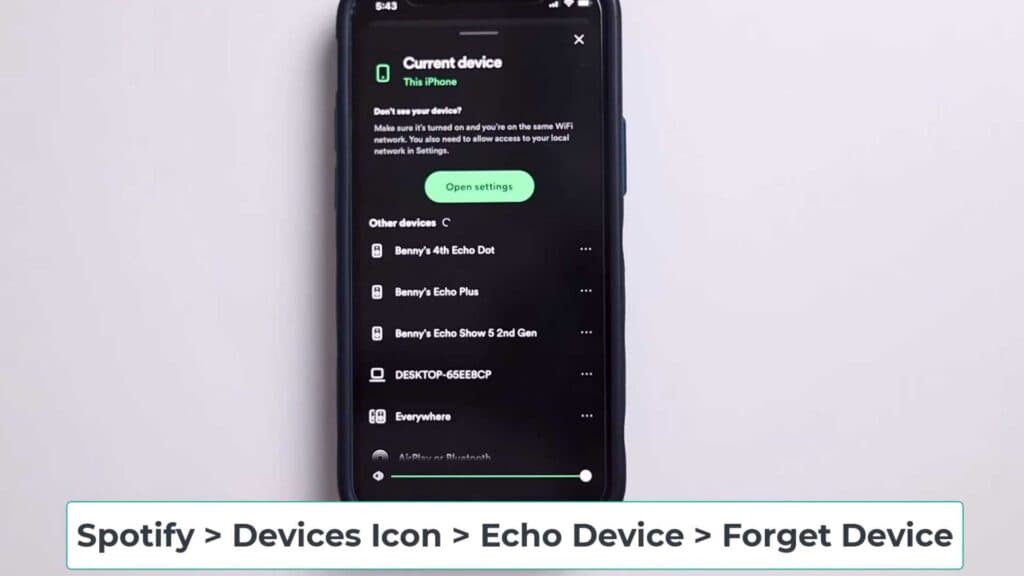
- Open the Spotify app, tap the speaker icon, choose your Echo, select the three-dot menu, and tap Forget Device before adding it again.
- Reset your Echo device by holding down the action button for 20 seconds.
Ninja Tip: Check if your Spotify account is currently active on another device, as this frequently blocks Alexa from initiating a new playback session.
To perform a full factory reset, press and hold the Action button on your Echo device until the light ring changes color.
Keep Reading

