How to Fix Samsung TV Source Input Issues

By Trae Jacobs,

When you buy through our links, we may earn an affiliate commission.
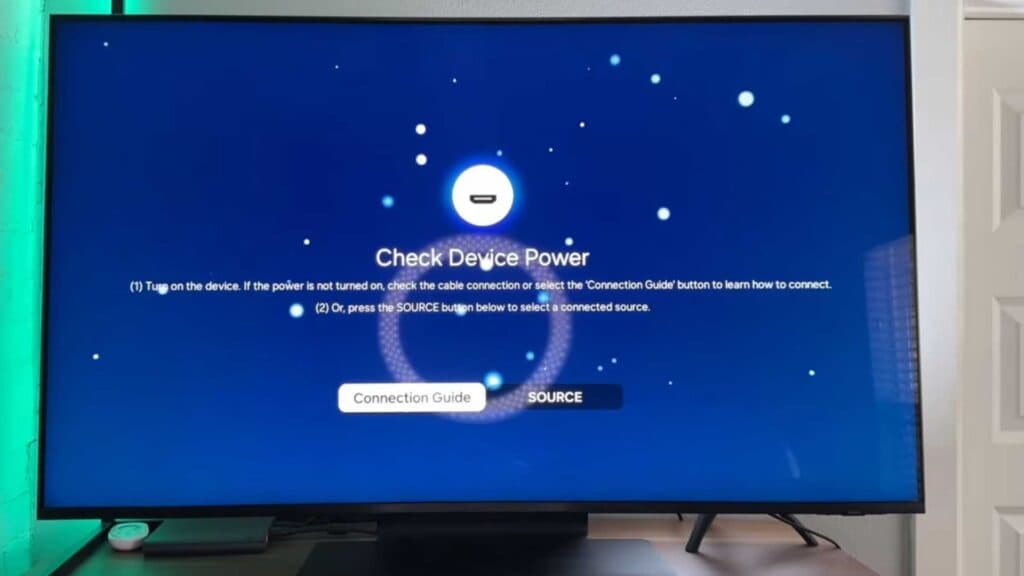
Your Samsung TV does not change to the correct source when you select a new input. You can fix this issue by following these troubleshooting steps.
- Check the area in front of your TV to make sure nothing is blocking the infrared sensor.
- Take the batteries out of your remote, press a few buttons to drain any residual power, and put them back in [0:46].
- If you use a solar cell remote, press and hold the back button and the center button at the same time to reset it [1:02].
- Use the physical button under the TV logo to open the menu and switch between inputs by pressing and holding [1:32].
- Download the SmartThings app on your phone to use it as a virtual remote if your physical one remains unresponsive [2:23].
- Navigate to Settings, select Support, and choose Software Update to ensure your TV is running the latest firmware [4:50].
- Inspect your HDMI ports for dust or debris, and ensure the device you are trying to connect is turned on and sending a signal.
Ninja Tip: Disable Anynet+ (HDMI-CEC) in your External Device Manager settings to stop connected devices from automatically hijacking or switching your input unexpectedly.
For a final resort, perform a full factory reset by going to Settings > General > Reset.
Keep Reading



