How to Fix Netflix When It’s Not Loading on Your Samsung TV

By Trae Jacobs,

When you buy through our links, we may earn an affiliate commission.
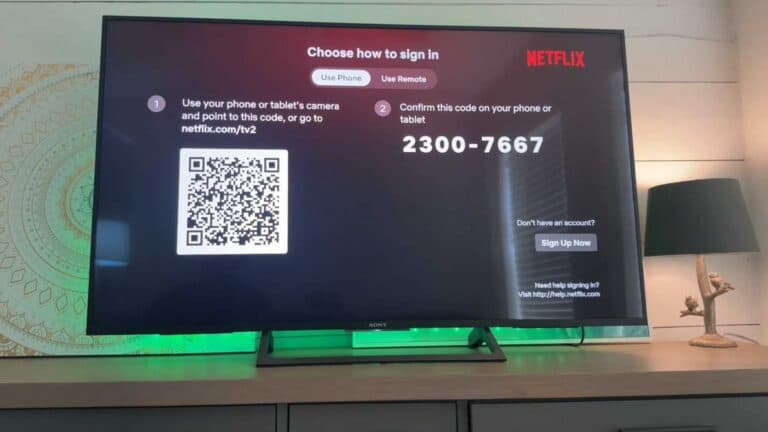
Your Netflix app is not working on your Samsung TV. You can follow these steps to get your streaming back to normal.
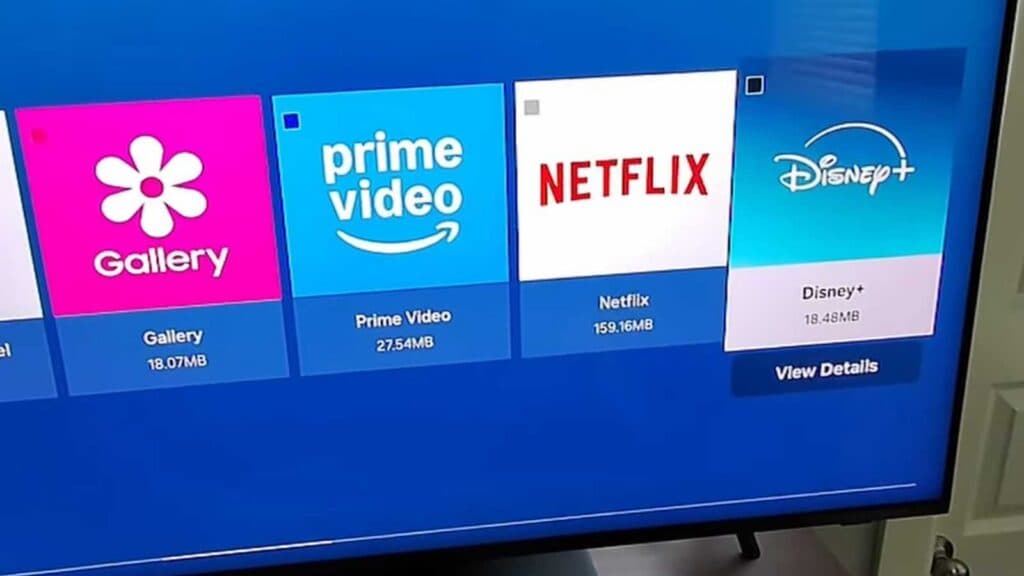
- Clear the Netflix app cache by going to Settings > Support > Device Care > Manage Storage, selecting Netflix, and choosing to clear the cache [1:00].
- If the app is still buggy, return to the storage menu to clear the app data [1:41].
- Perform a soft reset by holding down the power button on your remote until the TV turns off and then back on again [1:50].
- Check for system software updates in the Settings > Support > Software Update menu to ensure your TV is running the latest version [2:46].
- Run a network speed test using the TV’s web browser at speedtest.net to verify you have at least 5 Mbps for HD or 15 Mbps for 4K streaming [3:31].
Ninja Tip: If the app remains problematic, try signing out of your account on all devices via the Netflix website and then sign back in on your TV to force a fresh authentication token.
If these steps do not resolve the issue, perform a full factory reset by navigating to Settings > General & Privacy > Reset.
Keep Reading