How to Fix Netflix Connection and Performance Issues on Your Smart TV

By Trae Jacobs,

When you buy through our links, we may earn an affiliate commission.
Your Netflix app is not connecting to the internet or is freezing during playback. You can resolve these performance issues by following a few simple troubleshooting steps.
- Check your router to ensure your home internet is up and running correctly.
- Unplug your TV from the power outlet for 60 seconds to allow the system to fully discharge before plugging it back in. [0:41]
- Open a web browser on your TV to run a speed test and confirm your internet connection is actually reaching the device. [0:58]
- Move your router closer to the TV or remove physical obstructions that might be blocking the wireless signal. [1:05]
- Open the “Get Help” menu within the Netflix app to select options like “Reload Netflix” or “Check Network” to diagnose server-side issues. [2:11]
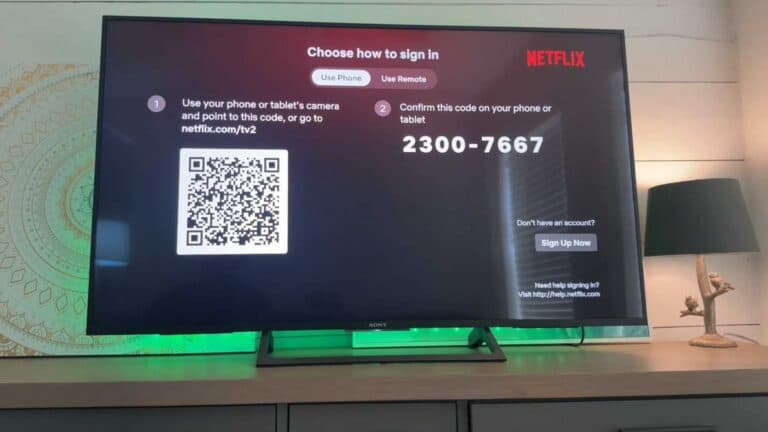
- Sign out of your Netflix account and sign back in to refresh your profile data. [2:42]
- Factory reset your TV if the app continues to malfunction by navigating to Settings > System > Factory Reset.
Ninja Tip: If you have an Ethernet port on your TV, connect it directly to your router with a cable; a wired connection is always more stable and faster than Wi-Fi for high-definition streaming.
Keep Reading