How to Fix Green Messages on Your iPhone

By Sameer,

When you buy through our links, we may earn an affiliate commission.
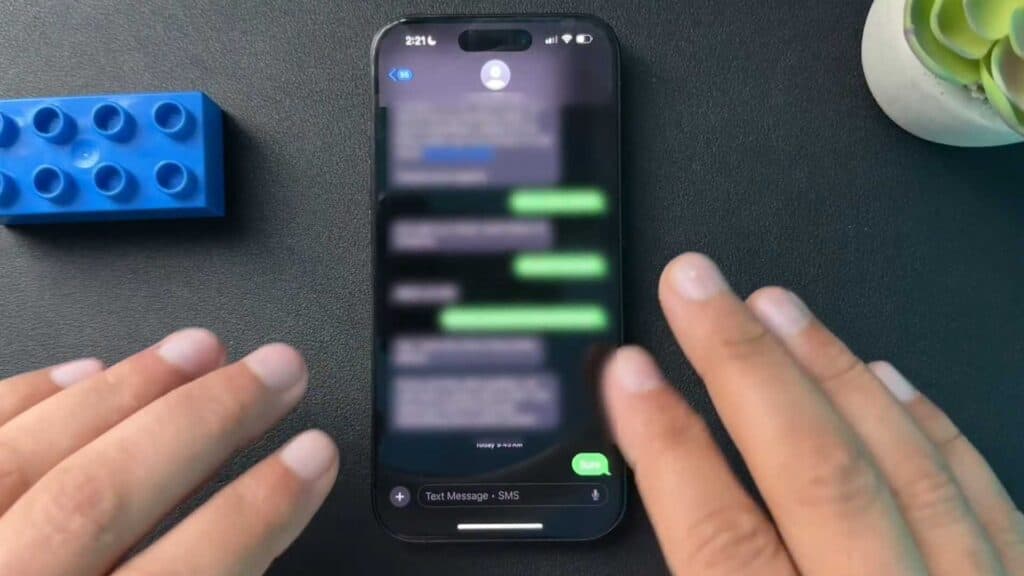
Your iPhone is sending green text bubbles instead of blue ones. You can resolve this issue by checking your settings and connection with a few simple steps.
- Open your Settings app, scroll down to the Apps section, select Messages, and toggle iMessage off and back on again [0:56].
- Run a speed test at speedtest.net to verify that your Wi-Fi or cellular connection is strong enough to support iMessage [1:26].
- Confirm that the person you are texting is using an iPhone, as messages to Android devices will always appear green [2:01].
- Check for any available iOS updates in Settings > General > Software Update to ensure your device is running the latest software [2:12].
- Reset your network settings by navigating to Settings > General > Transfer or Reset iPhone > Reset > Reset Network Settings [2:43].
- Perform a hard restart of your iPhone by holding down the power and volume buttons until the power-off slider appears.
Ninja Tip: If those steps don’t work, go to Settings > Messages > Send & Receive and ensure your phone number is selected with a checkmark, as an unverified number often prevents iMessage from activating correctly.
If you still cannot send blue messages, your last resort is a full factory reset located at Settings > General > Transfer or Reset iPhone > Erase All Content and Settings.
Keep Reading



