How to Fix Google TV Wi-Fi Connection Issues

By Trae Jacobs,

When you buy through our links, we may earn an affiliate commission.
Your Google TV keeps disconnecting from the internet. You can stabilize your connection with these simple steps.
- Set your TV to connect specifically to your 2.4 GHz network to improve range and stability. [1:12]
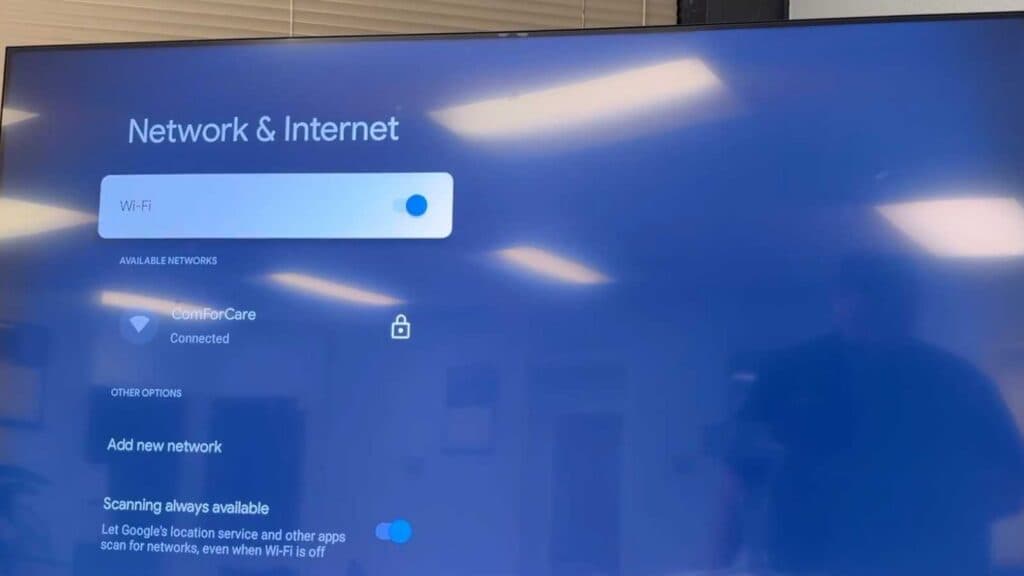
- Forget your current Wi-Fi network in the network settings and reconnect from scratch. [1:31]
- Unplug your router and modem, wait a moment, and plug them back in to restart your network. [1:56]
- Check your ISP’s app for a “Restart Network” button to refresh your connection remotely. [2:45]
- Download a speed test app on your TV to confirm you are receiving a strong, consistent signal. [3:18]
- Move your router closer to the TV or, if possible, use an Ethernet cable for a direct wired connection.
- Keep your router away from physical obstructions like brick walls or large appliances that dampen the signal.
- Check with your internet service provider to confirm there is no outage in your area.
Ninja Tip: Check your router’s admin settings to see if “Airtime Fairness” is enabled and turn it off, as this feature often causes smart TVs to get kicked off the network unexpectedly.
If the connection still fails, perform a factory reset by going to Settings > System > About > Reset.
Keep Reading



