How to Fix Buffering and Slow Streaming on Your Roku

By Trae Jacobs,

When you buy through our links, we may earn an affiliate commission.
Your Roku device is buffering while you try to watch your favorite shows. You can improve your connection speed and playback quality with a few simple adjustments.
- Connect your Roku directly to your router using an Ethernet cable if your device has an input port. This provides the most reliable connection compared to Wi-Fi [0:13].
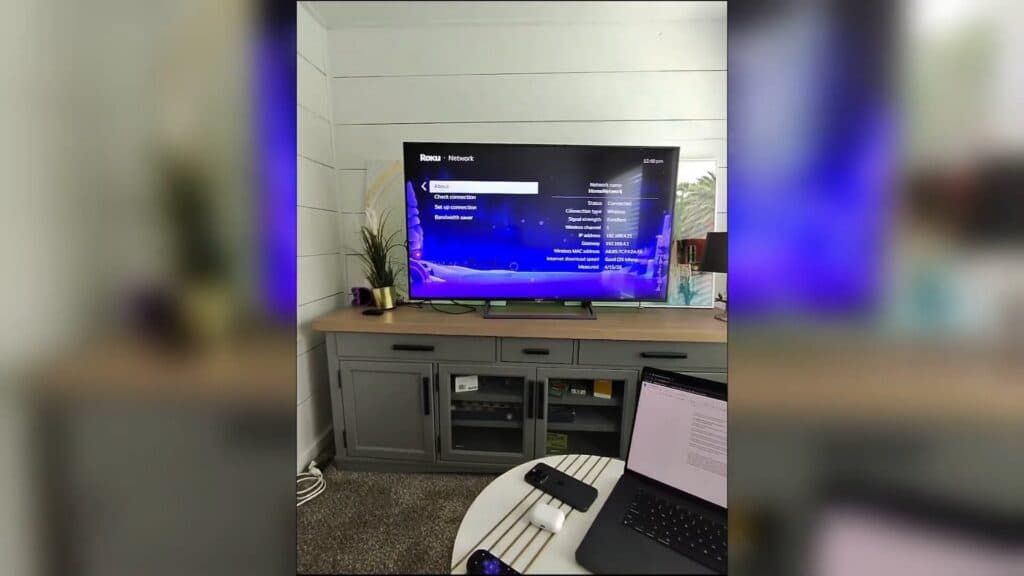
- Check your network connection by going to Settings > Network > Check connection to verify your signal strength and download speed [0:30]. You need at least 5 Mbps for HD streaming and 25 Mbps for 4K content[0:49].
- Restart your router by unplugging it from the power outlet for a full 60 seconds before plugging it back in [1:47].
- Move your router closer to the TV to ensure a stronger wireless signal [1:58].
- Reduce the video quality settings within your streaming apps to lower the bandwidth required for playback [2:18].
Ninja Tip: Disable the “Auto-adjust display refresh rate” setting in your Roku’s display menu if you notice micro-stuttering, as this forces the device to sync with the frame rate of the content you are watching.
If you still experience issues, perform a factory reset by navigating to Settings > System > Advanced system settings > Factory reset.
Keep Reading



