How to Fix Bluetooth Issues on Your Google TV

By Trae Jacobs,

When you buy through our links, we may earn an affiliate commission.
Your Google TV is not connecting to your Bluetooth devices. You can follow these stps to resolve your connection issues.
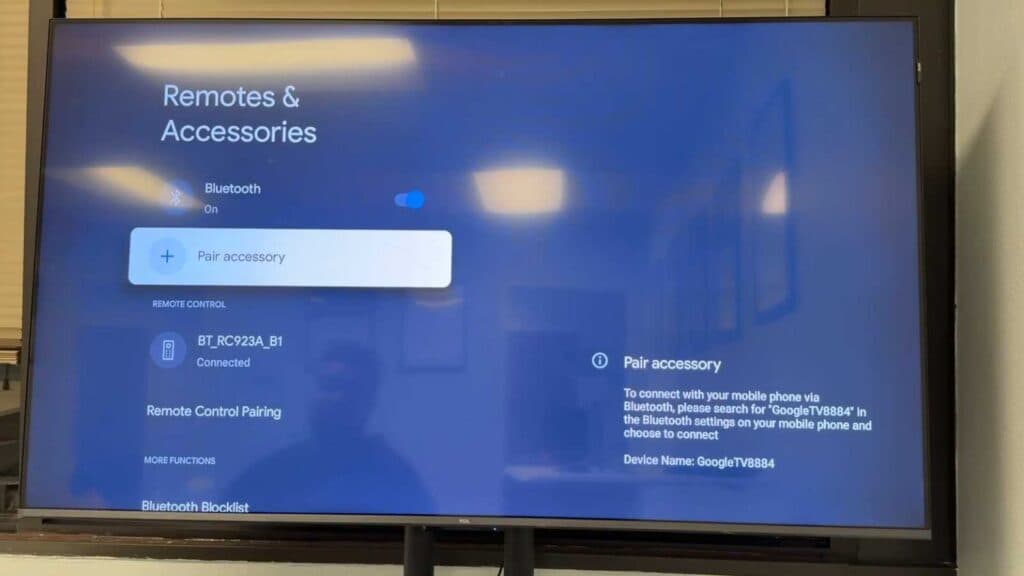
- Check your blocked devices list in Settings > Remotes & Accessories to ensure your accessory isn’t accidentally restricted [0:58].
- Restart your TV by going to Settings > System > Restart [1:33].
- Unplug your TV from the wall outlet for 60 seconds to dissipate any remaining electrical charge [1:42].
- Disconnect any connected soundbars or external audio equipment, as these can interfere with new Bluetooth pairings [2:05].
- Forget old or unused devices in your Bluetooth menu and toggle the Bluetooth setting off and back on [2:21].
- Restart the Bluetooth device you are trying to pair, such as your headphones or controller.
- Restart your TV in safe mode if the connection problems persist.
Ninja Tip: Check for software updates in Settings > System > About > System update, as outdated firmware often causes handshake issues between the TV and Bluetooth peripherals.
If these steps do not resolve the issue, you can perform a factory reset by navigating to Settings > System > About > Reset.
Keep Reading



