How to Fix Audio Delay on Your Samsung TV

By Trae Jacobs,

When you buy through our links, we may earn an affiliate commission.
Your Samsung TV audio is out of sync with the picture on your screen. You can fix this delay yourself with a few simple steps.
- Check your TV settings to see if a software update is available in the support menu [0:16].
- Inspect all HDMI cables and ports to ensure everything is connected tightly, and try moving your soundbar to a different HDMI port [0:33].
- Test a different source or app to see if the issue persists [0:53].
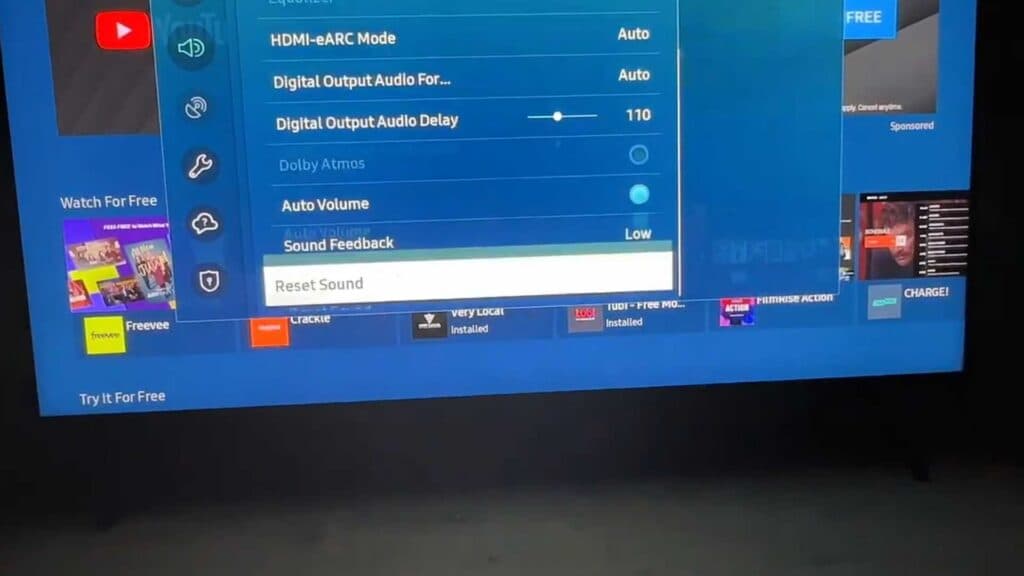
- Open your settings menu, navigate to Sound, and select Expert Settings to try resetting your sound configuration [1:32].
- If that does not work, stay in the Expert Settings menu to manually adjust the audio delay while your TV is on [2:03].
- Experiment with your output audio format by switching it from auto to PCM within the sound settings [2:22].
- If you are using a soundbar, check the manufacturer app or the physical remote for specific sync or delay controls [2:47].
- Unplug the power for your TV, soundbar, and all HDMI cables for at least 60 seconds to clear out any electric buildup [3:23].
- Perform a full factory reset in your TV settings as a final solution.
Ninja Tip: Disable the HDMI-CEC (often called Anynet+) setting in your TV’s external device manager to stop communication errors between your devices that frequently cause lip-sync issues.
To perform a factory reset, navigate to Settings > General > Reset.
Keep Reading


