How to Fix Apps That Won’t Open on Google TV

By Trae Jacobs,

When you buy through our links, we may earn an affiliate commission.
Your apps are not launching on your Google TV. You can resolve this issue by following these troubleshooting steps.
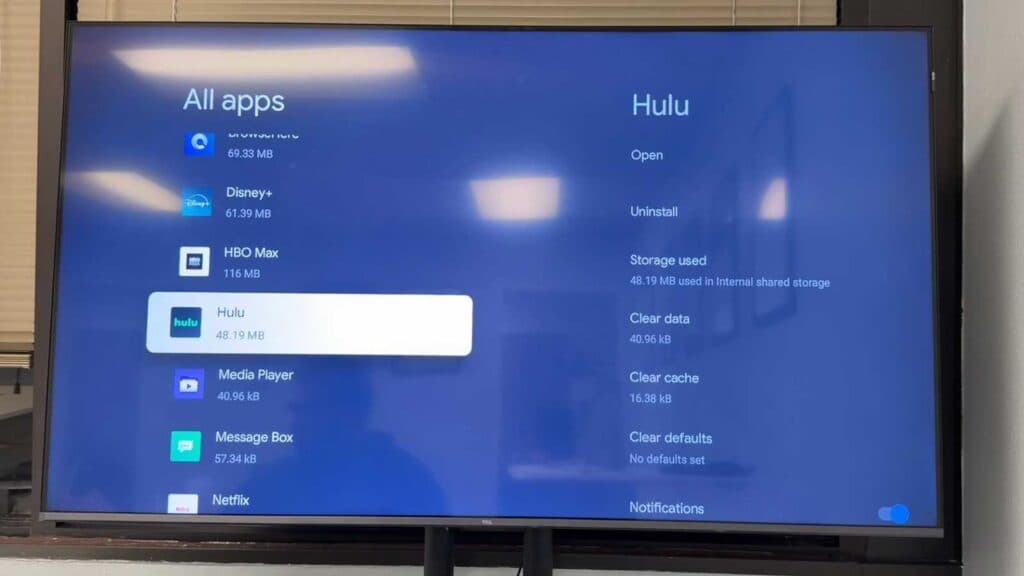
- Clear the cache for the app that isn’t opening by going to Settings > Apps > See all apps, selecting the app, and choosing the clear cache option. [0:24]
- Restart your TV by navigating to Settings > System and selecting the restart option. [1:14]
- Unplug your TV from the power outlet for at least 60 seconds to allow any residual electrical charge to dissipate. [1:23]
- Clear the app data by returning to the app settings menu, which will reset your account and sign you out of the service. [1:51]
- Update your apps or uninstall and reinstall them to ensure you are running the latest version. [2:16]
- Restart your TV in safe mode by selecting the restart button while simultaneously pressing and holding the physical power button on the television unit.
Ninja Tip: Check your TV’s Date & Time settings to ensure they are set to “Automatic.” If your system clock is off by even a few minutes, SSL/TLS handshake errors will prevent many streaming apps from connecting to their servers.
If these steps do not resolve the issue, you can perform a full factory reset by going to Settings > System > About > Reset.
Keep Reading



