How to Fix Apps That Won’t Open on Google TV

By Trae Jacobs,

When you buy through our links, we may earn an affiliate commission.
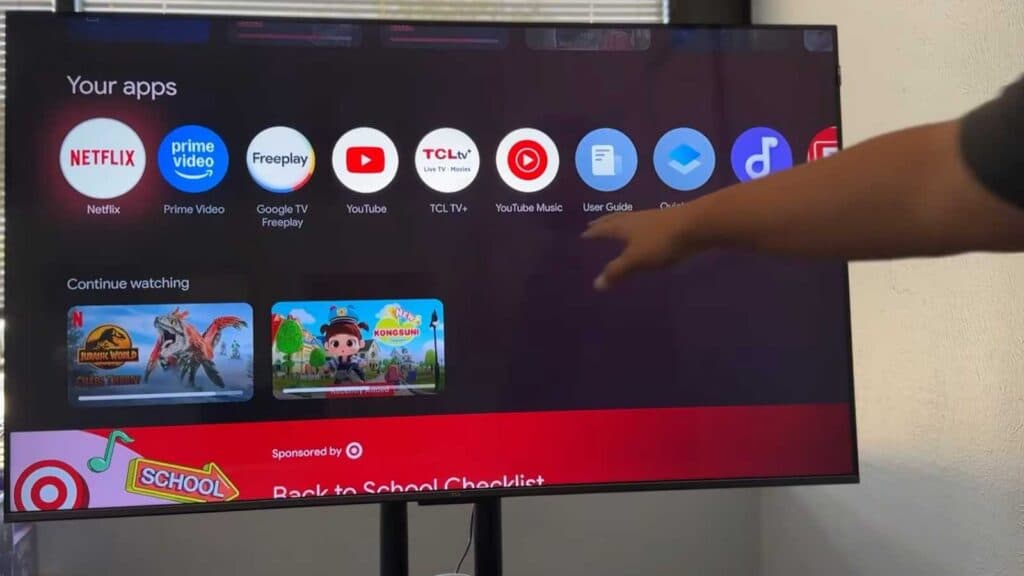
Your apps are failing to load or play content properly on your Google TV. You can resolve these issues quickly by following these troubleshooting steps.
- Check your internet connection by navigating to Settings and selecting your Wi-Fi network to ensure you are properly connected [0:30].
- Open a different app to see if the problem is specific to one service or a wider system issue [0:54].
- Go to Settings, select Apps, choose See all apps, and scroll down to select Show system apps [1:20].
- Locate Google Play Services, check for any available updates, and make sure it is running the most recent version [1:50].
- Navigate back to your problematic app within the apps menu to check for and install any pending updates [2:16].
- Clear the app’s cache or data to reset it to its original state if it still refuses to load.
Ninja Tip: If an app is still acting up, try force-restarting your TV by unplugging the power cable from the wall for one full minute before plugging it back in; this often clears out stubborn background process errors that standard restarts miss.
If the problem persists, perform a factory reset by navigating to Settings > System > About > Reset.
Keep Reading



