How to Fix Apple CarPlay Connection Issues

By Trae Jacobs,

When you buy through our links, we may earn an affiliate commission.
Your iPhone is failing to connect to Apple CarPlay. You can get it working again by following these steps.
- Go to Settings > General > CarPlay, select your vehicle, and verify that the CarPlay toggle is turned on. [0:21]
- If you use a wired connection, inspect your cable for damage and test your iPhone in different USB ports in your car. [0:48]
- Force restart your iPhone by holding the side button and the volume up button, then sliding to power off before turning it back on. [1:06]
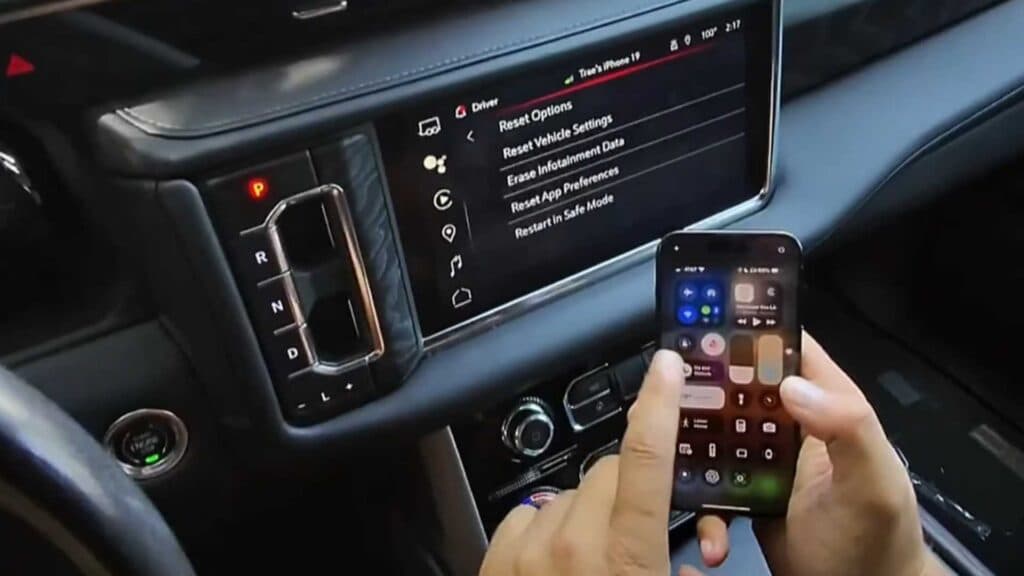
- Navigate to your car’s infotainment settings menu, look for the system section, and select the option to perform a system reset. [1:52]
- Open your iPhone’s control center and ensure that both Wi-Fi and Bluetooth are turned on. [2:35]
- Turn your car off, open the door to fully power down the electronics, and turn the car back on to re-establish the connection. [3:01]
- Check your iPhone settings to confirm you are running the most recent version of iOS.
Ninja Tip: Rename your iPhone by going to Settings > General > About > Name and giving it a simple, unique name, which often resolves handshake conflicts with your vehicle’s head unit.
If you still cannot connect, try a full factory reset of your car’s infotainment system through your vehicle’s settings menu under the system or device reset options.
Keep Reading



