How to Fix an iPhone Flashlight That is Grayed Out

By Trae Jacobs,

When you buy through our links, we may earn an affiliate commission.
Your iPhone flashlight is currently grayed out and won’t turn on. You can fix this issue by following these troubleshooting steps.
- Check your Camera app to see if the flash is already in use or set to off, as the camera and flashlight share the same hardware [0:27].
- Perform a force restart on your phone to clear out any temporary software glitches that might be hanging up the system [1:05].
- Navigate to Settings, select General, and check for any available software updates to ensure your device is running the latest version of iOS [1:38].
- Disable Low Power Mode in your battery settings if it is currently turned on, as this can restrict certain features to save energy [1:52].
- Inspect your phone for physical damage, like a cracked screen or case obstruction, which might be interfering with the flash LED.
- Reset your device settings by going to Settings > General > Transfer or Reset iPhone > Reset > Reset All Settings.
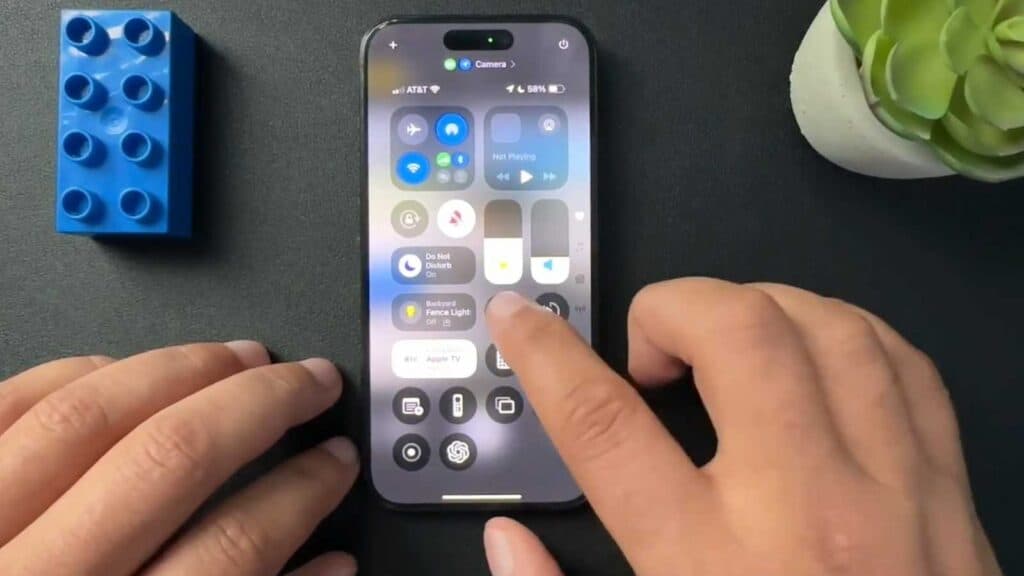
Ninja Tip: Check your Control Center to see if you have accidentally customized the flashlight brightness; sometimes, a software bug makes it appear unresponsive until you manually adjust the slider. If you have a shortcut for the flashlight in your Control Center, try removing and re-adding it to refresh the connection.
If the problem persists, try a full factory reset by going to Settings > General > Transfer or Reset iPhone > Erase All Content and Settings.
Keep Reading



