How to Fix a Slow or Lagging Roku Device

By Trae Jacobs,

When you buy through our links, we may earn an affiliate commission.
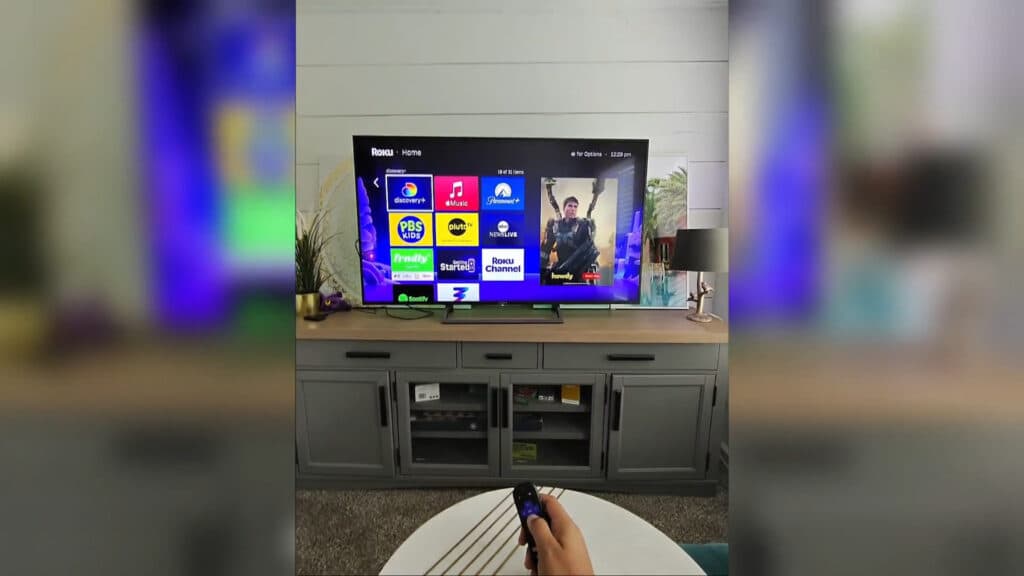
Your Roku device is running slowly and the home screen is lagging when you try to navigate. You can fix these performance issues with a few simple maintenance steps.
- Clear the system cache by pressing the Home button 5 times, then Up once, Rewind twice, and Fast Forward twice on your remote [0:21].
- Unplug the power cable from your Roku device and let it sit for one minute to clear out lingering electrical buildup [0:57].
- Remove unused apps if you have more than 40 installed, as this significantly slows down the interface [1:35]. To delete an app, highlight it on your home screen, press the Star button, and select Remove app [2:33].
- Check for software updates by navigating to Settings > System > System update to ensure your device is running the latest version [3:19].
- Test your Wi-Fi signal strength to ensure your connection is strong enough to prevent buffering while streaming content.
Ninja Tip: Disable the “Auto-play previews” feature in Settings > Home screen > Movie & TV store previews, as this reduces background processing and can make menu navigation feel much snappier.
If the performance issues persist, you can perform a factory reset by going to Settings > System > Advanced system settings > Factory reset.
Keep Reading
