How to Fix a Slow and Lagging Samsung Smart TV

By Trae Jacobs,

When you buy through our links, we may earn an affiliate commission.
Your Samsung Smart TV is running slowly and lagging during everyday use. You can fix these performance issues by following a few simple maintenance steps.
- Update your TV software by going to Settings > Support > Software Update and turning on Auto Update. [0:58]
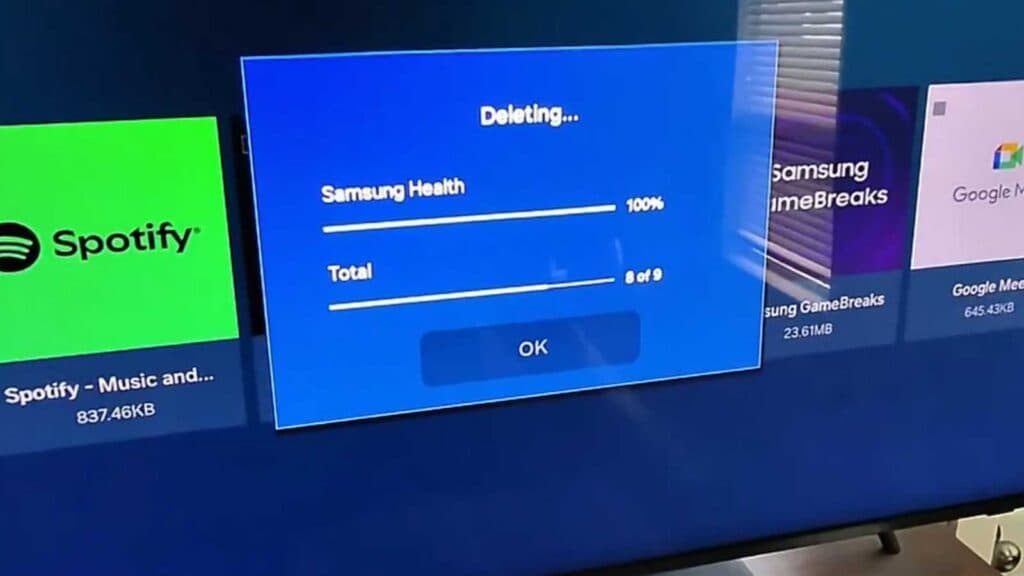
- Clean up your storage by navigating to Device Care > Manage Storage to clear the cache for individual apps and delete the ones you no longer use. [1:13]
- Open Settings > All Settings > General & Privacy > Start Screen Options to deselect any apps you don’t want launching automatically when you turn on the TV. [4:37]
- Perform a power cycle by holding down the power button on your remote until the Samsung logo reappears on the screen. [5:25]
- Run a diagnostic test on your connection by going to Settings > Support > Device Care > Self Diagnosis > Smart Hub Connection Test. [6:46]
- Reset your Smart Hub in the same Self Diagnosis menu using your PIN, which is usually 0000 if you haven’t changed it.
Ninja Tip: Disable “Intelligent Mode” in your TV settings, as this background feature constantly monitors your room’s light and sound levels, which can consume extra processing power and contribute to system lag.
If the performance issues persist, you can perform a factory reset by navigating to Settings > All Settings > General & Privacy > Reset.
Keep Reading


