How to Fix a Google TV That Won’t Turn On

By Trae Jacobs,

When you buy through our links, we may earn an affiliate commission.
Your Google TV is currently stuck on a black screen and refuses to power up. You can resolve this issue by following a few simple troubleshooting steps to reset the device’s power state.
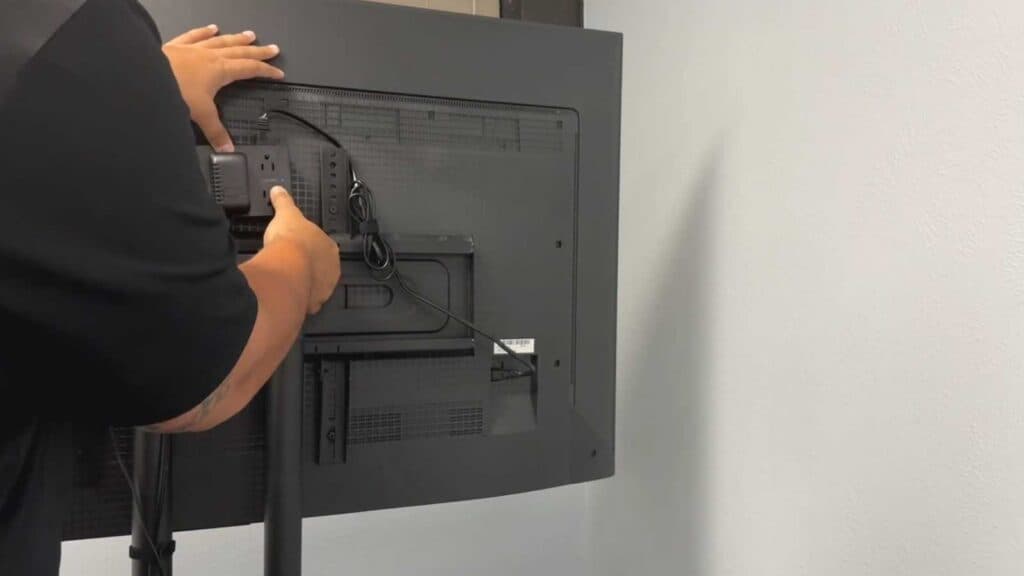
- Unplug the TV’s power cord from your surge protector or wall outlet and leave it disconnected for 60 seconds [0:34].
- Locate the physical power button on the TV itself and hold it down for 15 to 30 seconds to discharge any remaining electrical buildup [1:21].
- Plug the TV power cable directly into a wall outlet, bypassing any surge protectors or power strips, then try to turn the TV on [1:48].
- Replace your power cord if you are currently using a non-original cable, as third-party replacements can sometimes cause power delivery issues [2:05].
- Inspect your HDMI cables and test different ports to ensure a faulty connection isn’t preventing the TV from initializing properly [2:18].
- Observe the indicator light on the front of the TV; if it is blinking, you can often identify a specific hardware or software error code based on the flash pattern [3:05].
Ninja Tip: Perform a “flashlight test” by shining a bright light directly at your screen while the TV is powered on; if you see a faint image, your backlight is likely the culprit, which often requires professional repair.
If these steps do not resolve the issue, you may need to perform a factory reset, which is typically found under Settings > System > About > Factory reset.
Keep Reading



