How to Fix a Flickering Samsung TV Screen

By Trae Jacobs,

When you buy through our links, we may earn an affiliate commission.
Your Samsung TV screen is flickering right now. You can fix this issue by following these troubleshooting steps.
- Check all cables plugged into your TV, including power cords, HDMI cables, and USB cables, to ensure they are secure and not damaged [0:37].
- Test your internet speed near the TV with your phone to verify a strong connection, or move your router closer if the signal is weak [1:09].
- Go to your TV settings to check for any available software updates and install them to ensure the system is current [1:31].
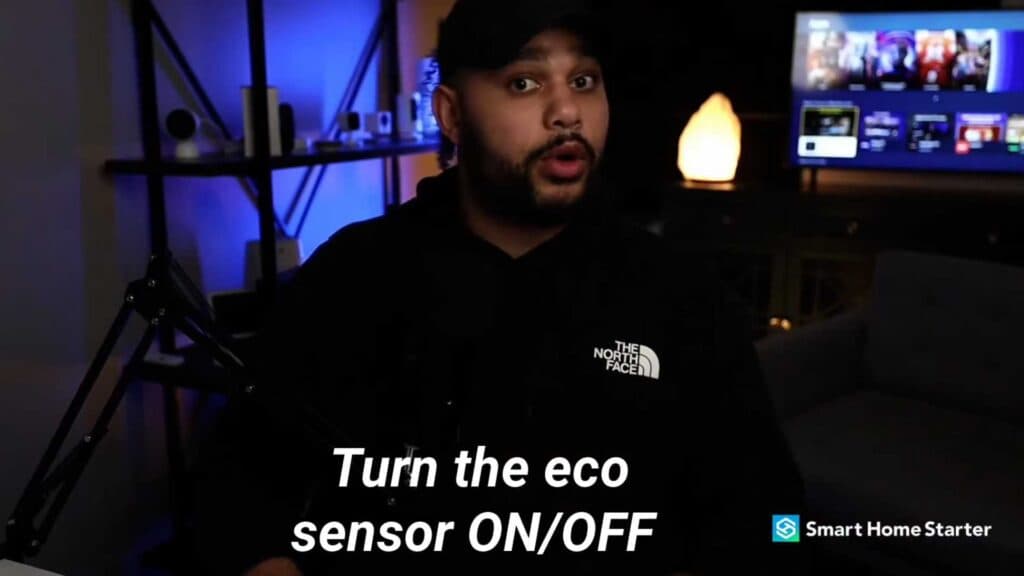
- Navigate to your settings menu to turn off the Eco-sensor to see if the flickering stops [1:46].
- Disable the energy-saving function in your settings menu to see if this resolves the display problem [1:54].
- Check your broadcasting signal by going to Settings > Support > Self Diagnosis > Signal Information to verify the connection strength [2:16].
- Adjust the angle of your seating or move the TV to a different spot to rule out glare or positioning issues [2:36].
- Turn your TV off for a while to ensure it is not overheating from extended use [2:47].
- Power cycle the TV by unplugging it for a minute and then plugging it back in to clear out any electric buildup.
- Assess the age of your TV to determine if you are experiencing a hardware failure like a burnt-out bulb.
Ninja Tip: Check your TV’s picture mode and change it from Dynamic or Vivid to Standard or Movie mode, as high brightness settings can sometimes stress the backlight components.
To perform a factory reset, navigate to Settings > Support > Self Diagnosis > Reset.
Keep Reading


