How to Fix a Dark Picture on Your Samsung TV

By Trae Jacobs,

When you buy through our links, we may earn an affiliate commission.
Your Samsung TV screen is currently too dark to see properly. You can adjust your settings to restore a bright, clear picture.
- Open the settings menu using your remote control to begin checking your display configurations [1:56].
- Navigate to the picture mode section and cycle through the different presets to see if another mode improves the brightness [2:04].
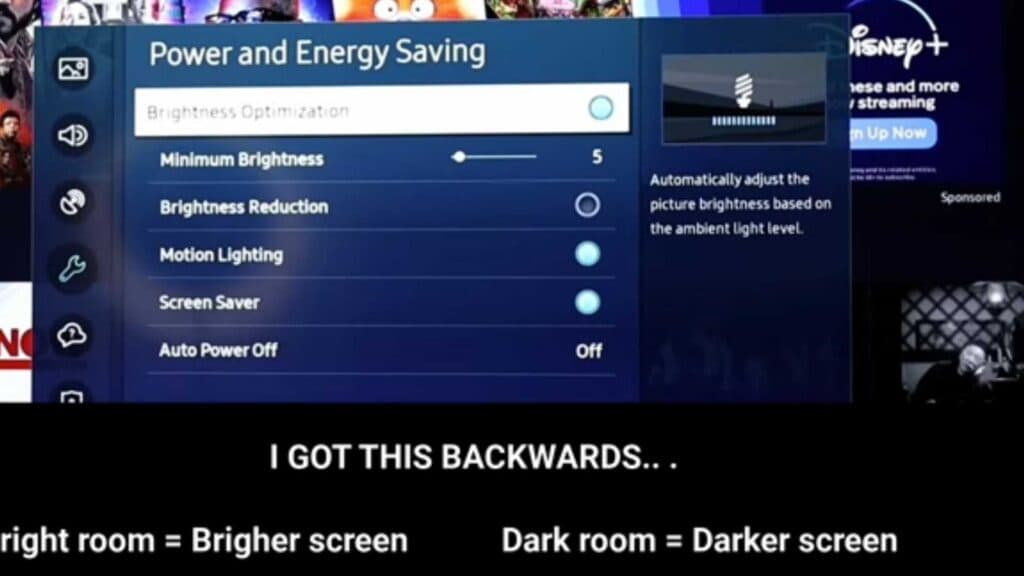
- Go to the General tab, select Power and Energy Saving, and locate the Brightness Optimization feature [2:28].
- Toggle Brightness Optimization on, and then manually adjust the minimum brightness setting if you need more light on the screen [2:46].
- Turn off the Brightness Reduction feature in the same energy saving menu to stop the TV from dimming its own backlight to save power.
Ninja Tip: Check the HDMI cable connection between your source device and the TV, as a loose or damaged cable often causes significant picture dimming that software changes cannot fix.
If the screen remains dark, perform a full factory reset by navigating to Settings > General > Reset.
Keep Reading


