How to Find Your YouTube Channel ID

By theblogfixer,

When you buy through our links, we may earn an affiliate commission.
You need to find your YouTube Channel ID for account management or integration purposes. You can locate this unique identifier by following the steps in your account settings.
- Sign in to your YouTube account and click on your profile icon in the upper right corner [0:19].
- Select YouTube Studio from the dropdown menu to enter your dashboard [0:23].
- Click on Settings located in the bottom left sidebar [0:28].
- Select Channel and then navigate to the Advanced settings tab [0:35].
- Scroll down to the bottom of the page and click Manage YouTube account [0:42].
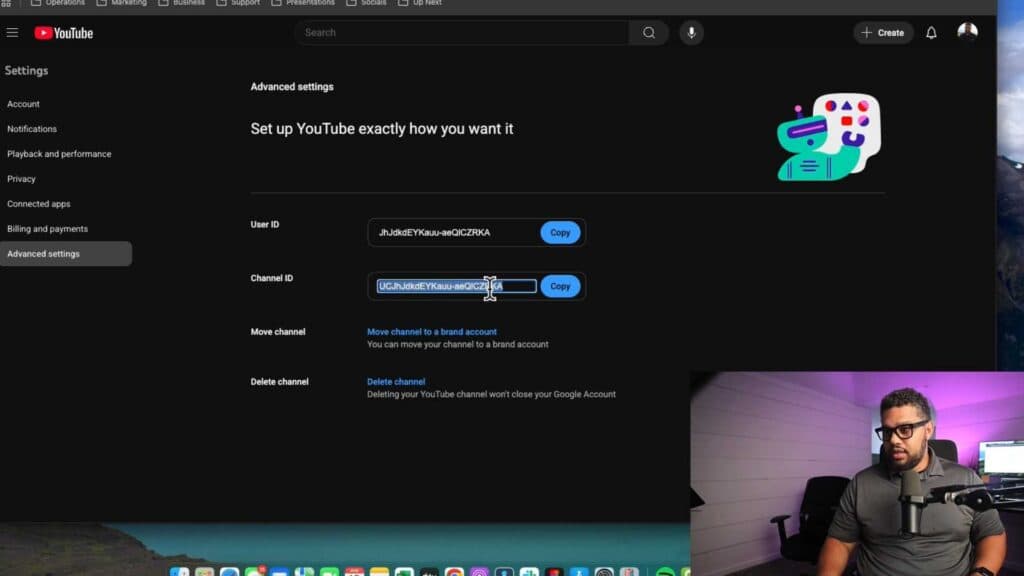
- Click on Advanced settings again on the new page to view your channel ID.
Ninja Tip: You can also find your channel ID by navigating to youtube.com/account_advanced directly while logged in to your account, which bypasses the need to go through YouTube Studio. This is a much faster way to grab your ID if you already have the site open.
If you still cannot locate your ID, you can try checking your account status via Settings > Channel > Basic info.
Keep Reading