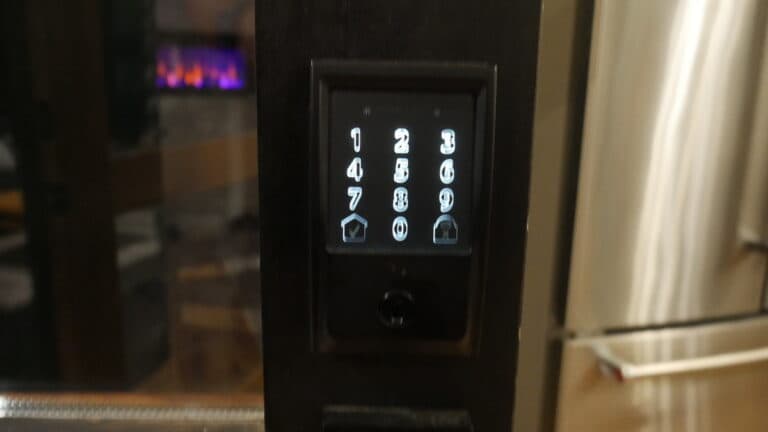
How to Factory Reset Your Nest x Yale Smart Lock

By Trae Jacobs,

When you buy through our links, we may earn an affiliate commission.
Your Nest x Yale lock needs a factory reset to clear all previous settings. You can complete this process yourself in just a few minutes.
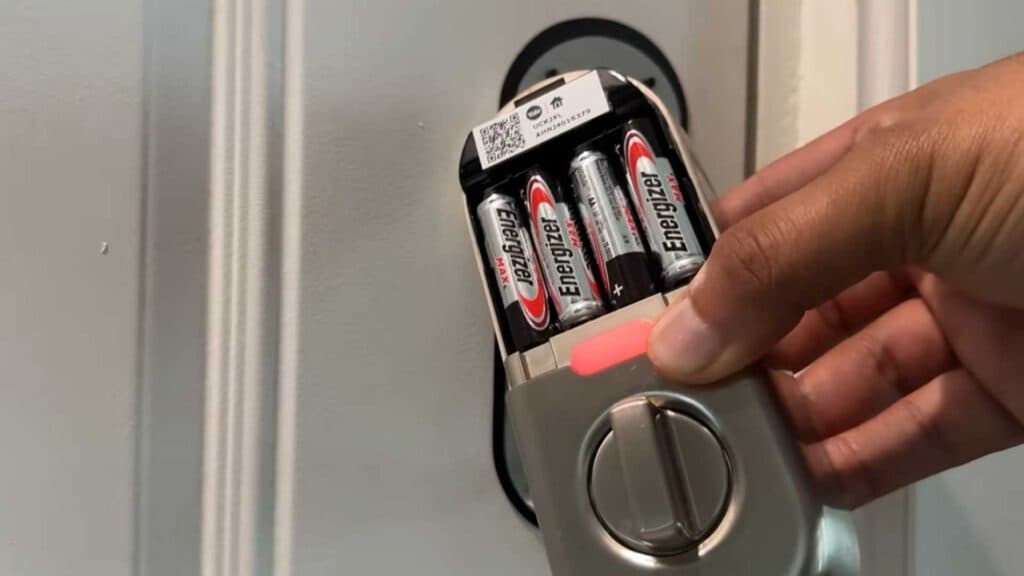
- Use a toothpick to push down the lever inside the small hole at the top of the battery cover to remove it [0:26].
- Take all the batteries out of the container [0:46].
- Remove the two screws that secure the interior assembly to the door, and be careful to hold the unit so you do not damage the wire connecting it to the front lock [0:54].
- Locate the reset button on the back of the device, press and hold it, and keep holding it while you reinsert the batteries [1:25].
- Wait for the lock to say “Just a moment” and turn red, which indicates the device is erasing all data [2:00].
- Remove the batteries again once the reset finishes, then reattach the interior assembly to the door with the screws, and finally put the batteries back in to finish the setup.
Ninja Tip: Before you begin, make sure you have the Master Passcode ready, as you will need it to re-register the lock with your Nest app once the reset is complete.
After you finish the physical reset, complete the setup by adding the lock back to your account through the Nest app.
Keep Reading