How to Factory Reset Your iPhone and Erase All Data

By Trae Jacobs,

When you buy through our links, we may earn an affiliate commission.
Your iPhone contains personal data that needs to be wiped before you sell or trade it. You can remove all of your information and reset the device to its original factory settings by following these steps.
- Open the Settings app on your iPhone and select your Apple ID at the top to check your backup status [0:52].
- Tap on your device name and ensure that iCloud Backup is turned on, or select Back Up Now to save your current data [1:03].
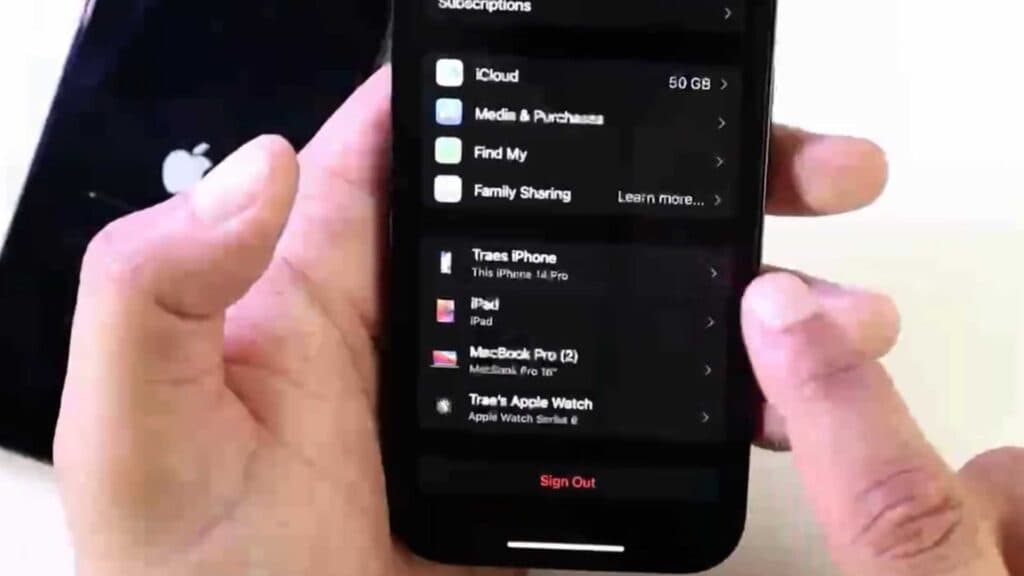
- Return to the Settings menu, tap on your Apple ID profile again, and scroll down to select Sign Out [1:49].
- Enter your Apple ID password and confirm that you want to sign out of your iCloud account to disconnect the device [2:05].
- Go to Settings, select General, and tap on Transfer or Reset iPhone [2:51].
- Choose Erase All Content and Settings, then enter your passcode to confirm the total wipe of your phone.
Ninja Tip: Before you erase the phone, unpair any connected Bluetooth devices like AirPods or Apple Watches in your Bluetooth settings to prevent connectivity issues with your new device.
To factory reset your iPhone, navigate to Settings > General > Transfer or Reset iPhone > Erase All Content and Settings.
Keep Reading



