How to Factory Reset or Restart Your Roku Device

By Trae Jacobs,
When you buy through our links, we may earn an affiliate commission.
Your Roku device is frozen or not performing as expected. You can resolve these issues by performing a system restart or a factory reset.
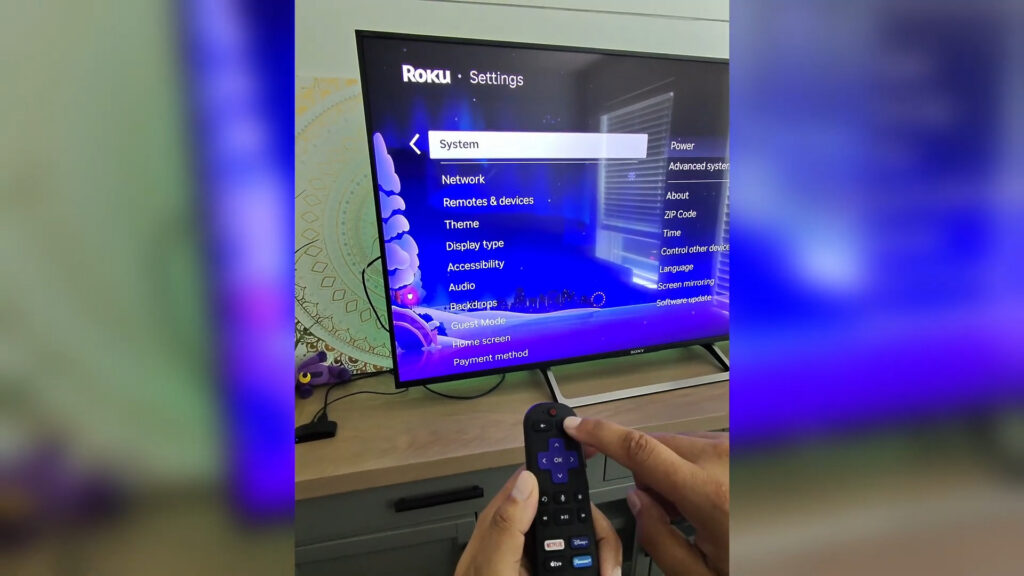
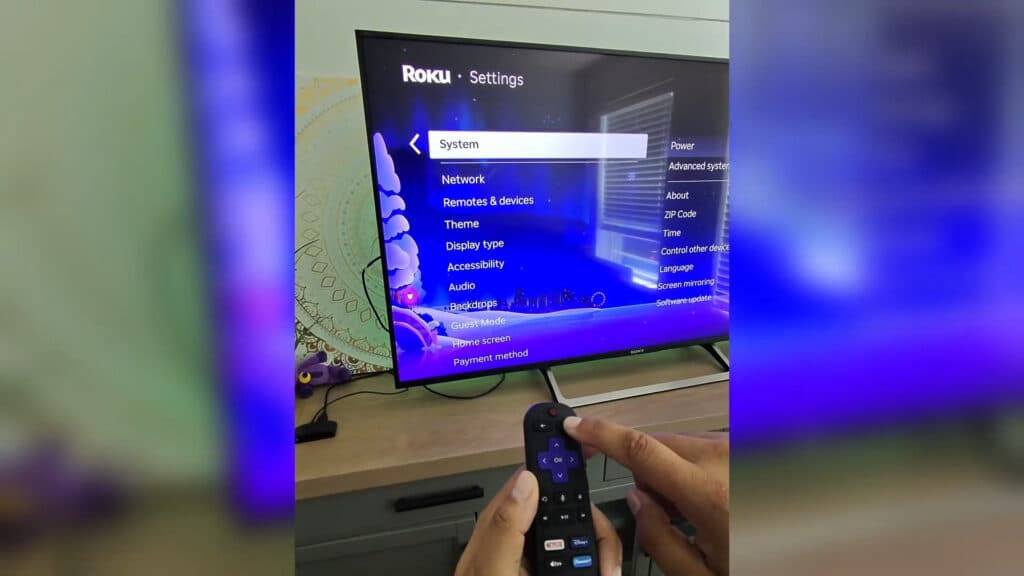
- If your device is accessible, navigate to Settings > System > Power > System Restart to perform a standard reboot [1:45].
- For a frozen device, press Home five times, then Up, Rewind twice, and Fast Forward twice on your remote to trigger a restart [2:07].
- To perform a manual restart using the hardware, press the physical Reset button on the back of your Roku once.
- If you need to erase all data and return the device to its original out-of-box state, hold the physical Reset button for 10 to 20 seconds [1:13].
- Alternatively, you can initiate a complete wipe through the interface by navigating to Settings > System > Advanced system settings > Factory reset.
Ninja Tip: If your device remains sluggish after a restart, try unplugging the Roku from its power source for 60 seconds before plugging it back in to clear the cache. This simple power cycle often clears temporary glitches that a software-level restart might miss.
Perform a final reset by navigating to Settings > System > Advanced system settings > Factory reset.
Keep Reading

